Plan your content week
Plan next week’s posts in about two minutes. Ask your Director for a week plan, review the days it proposes, approve it, and adjust on the calendar as your week changes. Do it every Monday and your content schedule runs itself.
Ask: "plan my week"
- Open a chat with the brand you’re planning for.
- Type "Plan my week" and send. Adding context helps: "Plan my week — we’re launching the new menu Thursday."
- Your Director looks at your recent numbers, your brand, and your saved ideas, then proposes a plan. It arrives as an Approval card titled Week plan, marked Pending approval.
- Happy with it? Click Allow. Not quite? Click Reject, or just reply in chat with what to change — "swap Tuesday for something lighter" — and ask again.
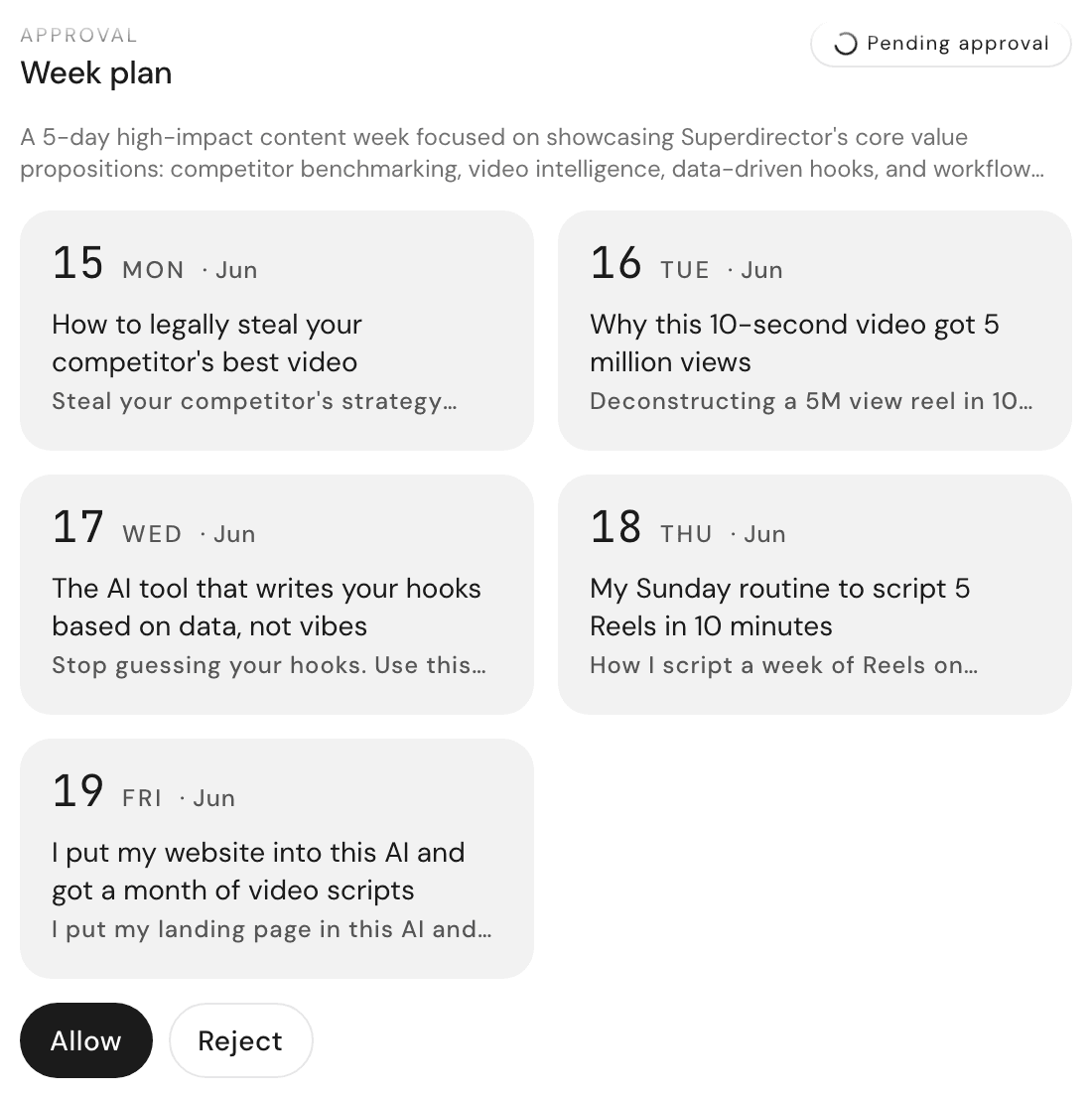
Your Director decides how many posting days fit your brand. Want a different rhythm? Say so directly: "Plan five posts next week" or "Just three days this week."
Read your plan
The plan shows up as a strip of day cards — one card per planned day.
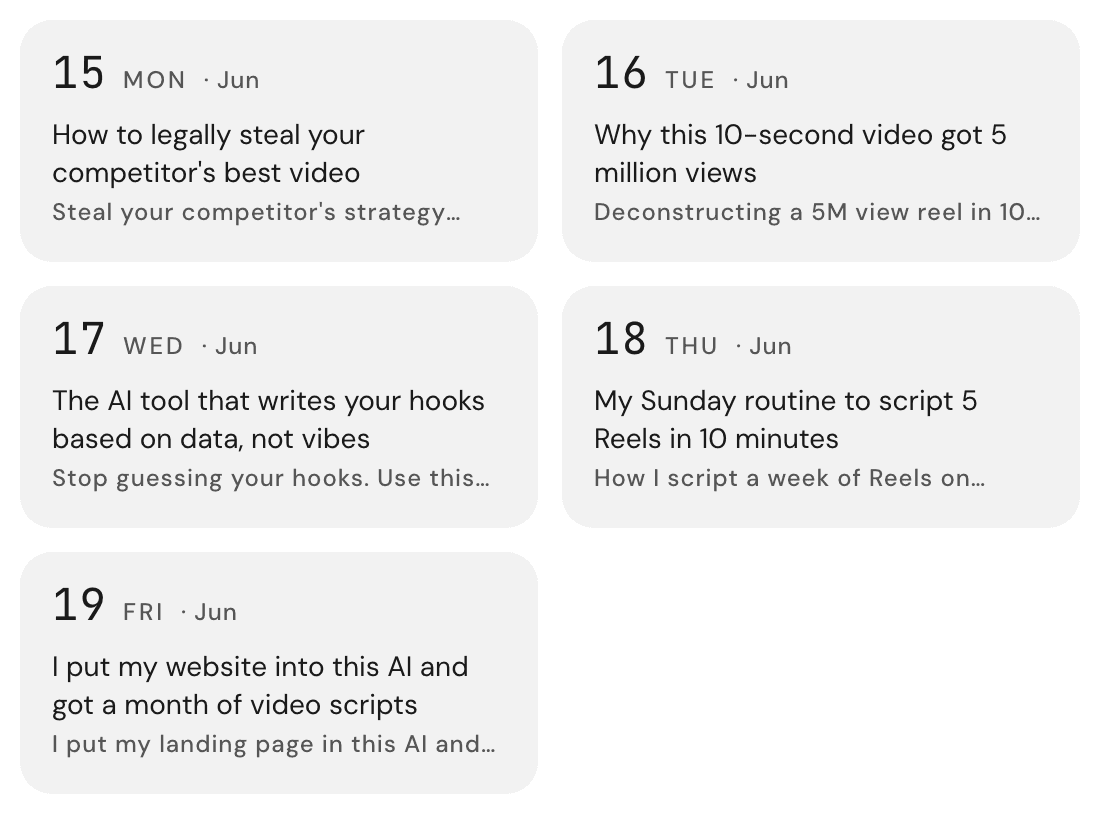
Each card tells you three things:
- When — the date, big, with the weekday next to it.
- What — the idea title: the video to make that day.
- The angle — a one-line hook underneath, so you remember why this idea earns its slot.
Once you approve a plan, a short note confirms what was scheduled. When an individual script gets a date, you’ll also see a Schedule card in chat reading Script scheduled.
Move or swap a day
Weeks change. Move things without re-planning everything:
- Click Overview next to your profile in the top bar.
- On the Content Calendar card, click Open calendar.
- Drag any scheduled item to a different day. Done — that’s the reschedule.
- You can also drag a ready script from the side rail onto a day to add it to the week.
For bigger changes, chat is faster than dragging: "Move Thursday’s post to Friday and find me something for Wednesday."
Your Monday routine
The plan gets smarter when you feed it last week’s results. Every Monday:
- Ask: "How did last week go?" Your Director reads your fresh numbers and tells you what worked.
- Then ask: "Find me five ideas." Pick the one you’d actually make — the new plan draws from your saved ideas.
- Then ask: "Plan my week." The new plan leans into what performed and drops what didn’t — approve it, adjust it, and get on with your Monday.
Three messages, once a week — that’s the whole habit.
Open the planner from Overview
You don’t have to start from chat. Click Overview in the top bar and find the Content Calendar card — it shows your last week, this week, and next week at a glance, with a dot on every scheduled day.
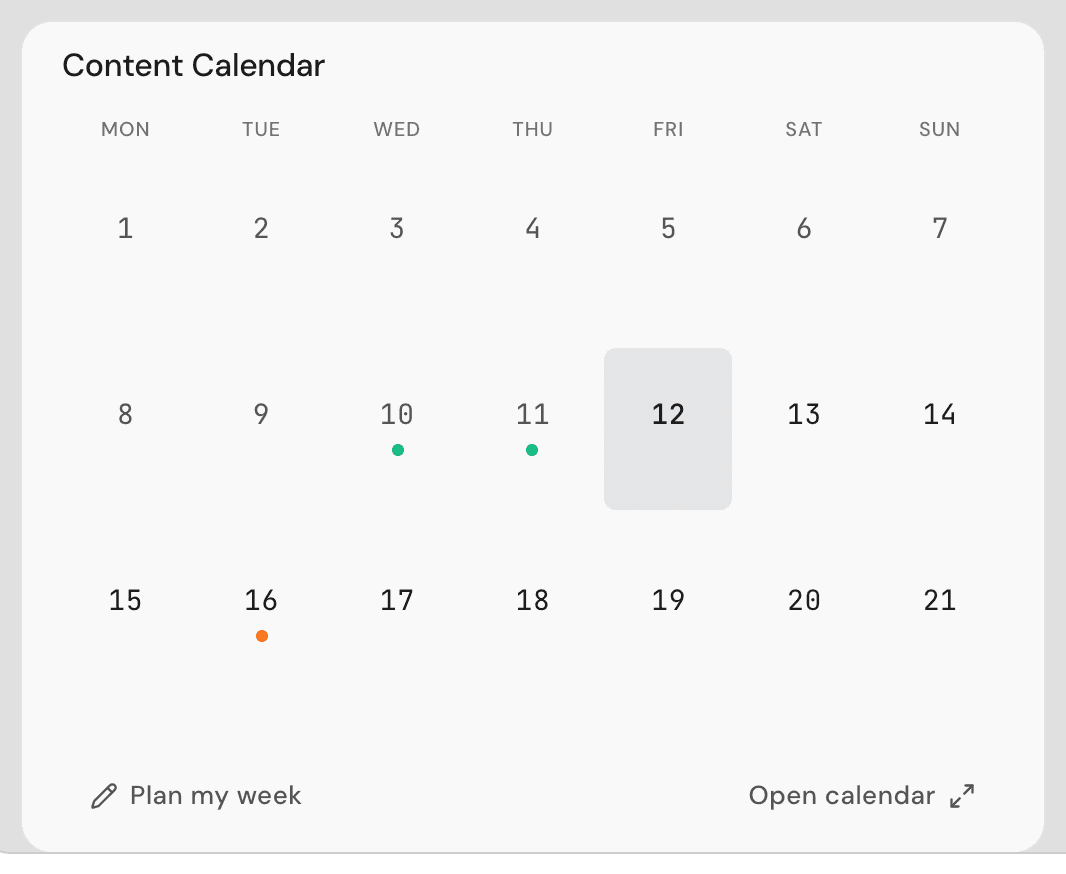
Click Plan my week on that card and your Director starts a planning conversation for you — same flow, one click sooner.