Meet your Director
This is a five-minute tour of your dashboard — the one screen where you and your Director do all your work. After it, every button you see will make sense.
The chat: just ask in plain words
The left side of your dashboard is a conversation. Type what you want the way you’d ask a teammate:
- "Find me five ideas about morning routines."
- "How did this week go?"
- "Turn this into a script."
The message box itself gives you a hint: "Describe a story, or type @ to attach an inspiration…" — typing @ lets you pull a saved reference or another brand into your request. Answers come back as cards in the chat: an Inspiration card for ideas, a Performance card for your numbers, a Brand DNA card for your brand summary.
There are no special commands to memorize. Whatever you want next — even mid-project — just type it: "Turn this into a script."
The work tabs: where finished work lands
The right side of your dashboard holds the work tabs. As your Director produces things, each one gets a home:
- Script Editor — your script, ready to read and edit.
- Storyboard — your shots as pictures.
- Production Plan — the shoot-ready brief.
- Results — references and videos you’ve saved.
- Details — the summary of the current project.
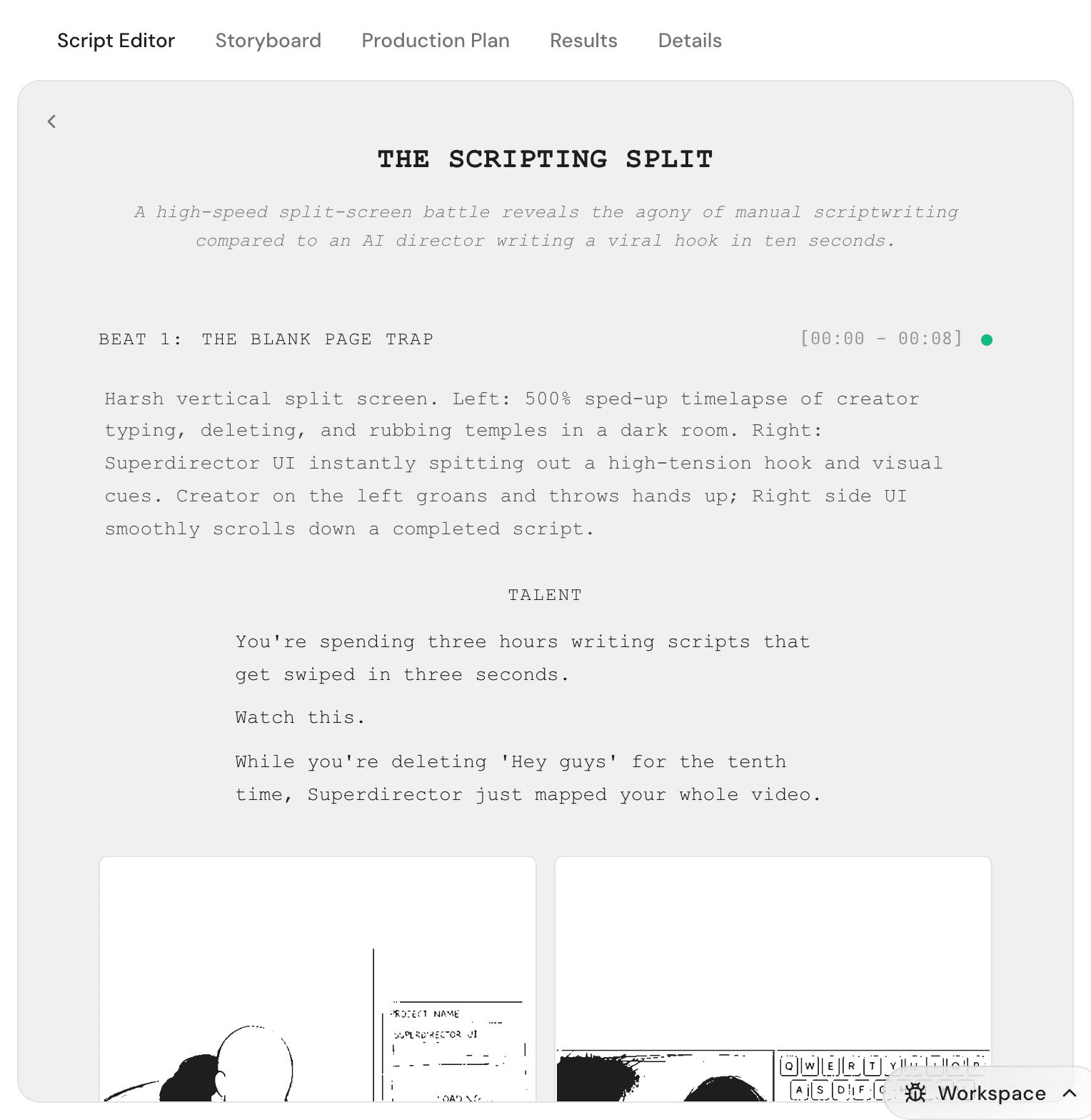
Tabs appear as their work exists — a brand-new thread shows only a Tutorial tab until there’s something to show.
The Overview panel: your brand at a glance
In the top bar, your brand’s profile pill has an Overview button. Click it and a panel opens with three cards:
- Account — your follower and engagement trends, with Followers and Engagement views, plus your Brand DNA.
- Content Calendar — what’s planned for the week.
- Strategy — competitor signals and what changed around your niche.
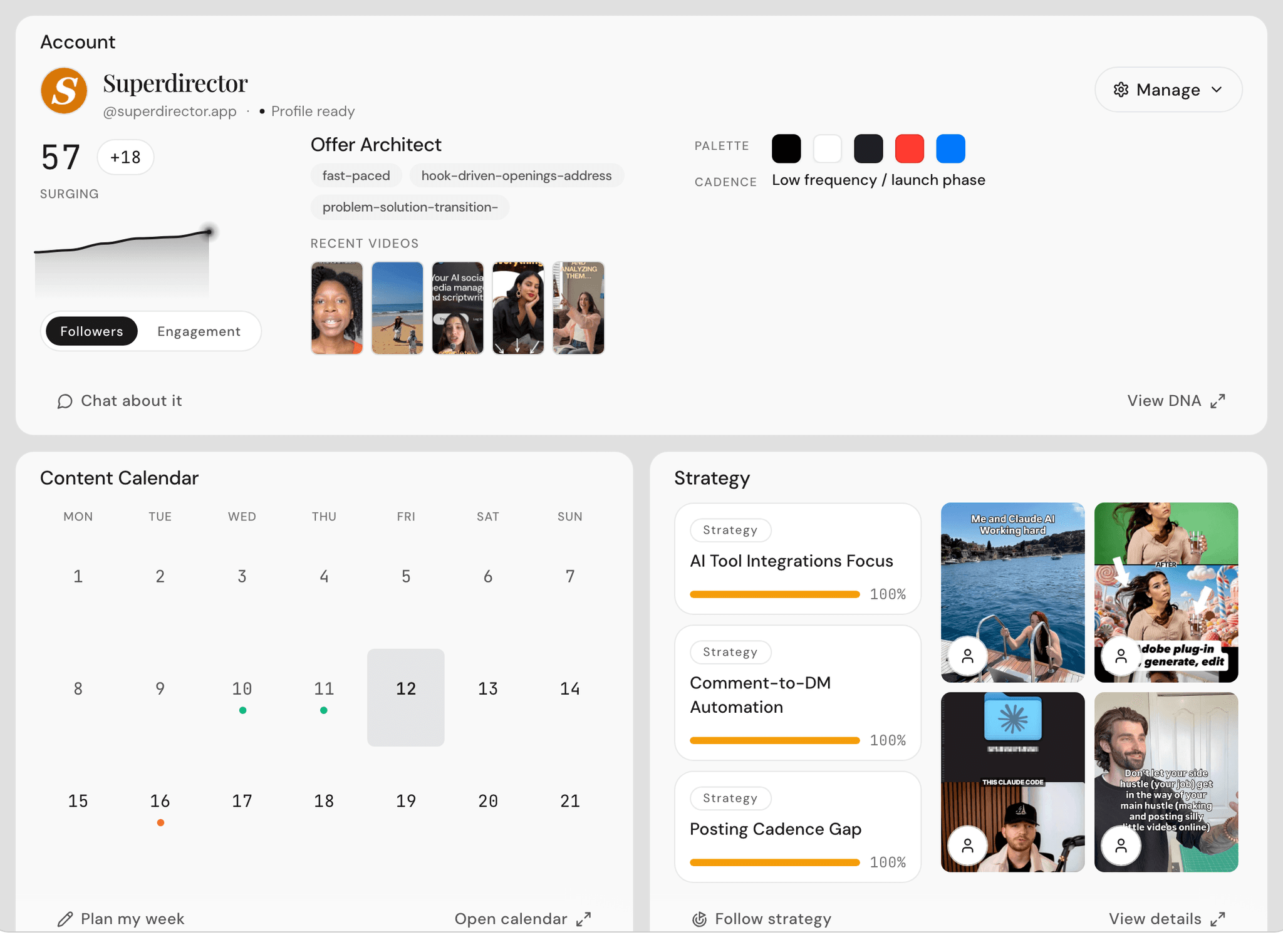
This is your check-in screen. Open it Monday morning, read it in a minute, close it. The full guide is Track your account’s performance.
Threads: one conversation per task
Every conversation with your Director is a thread, and each thread keeps its own work tabs. Keep one project per thread — one thread for this week’s script, another for competitor research — and nothing gets tangled.
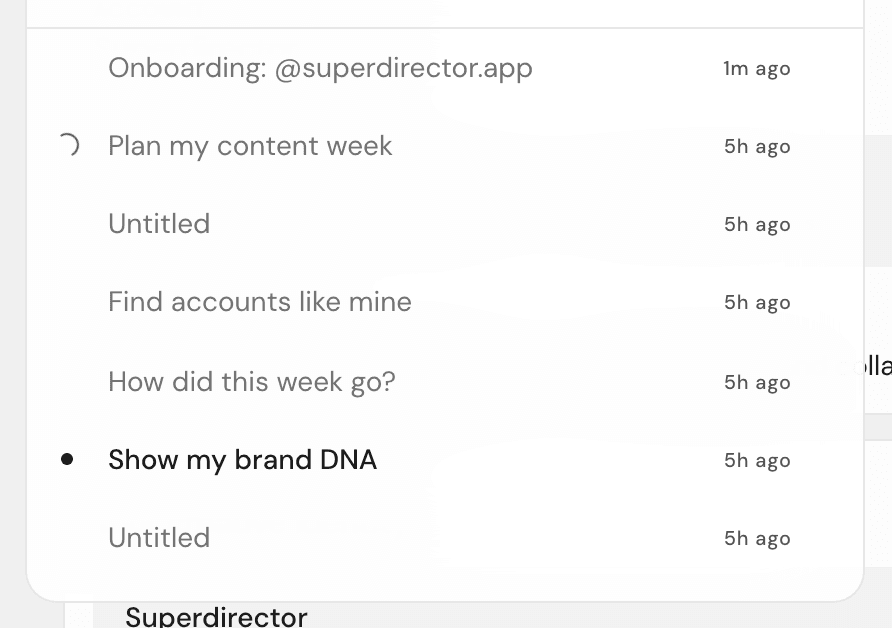
Click the thread name in the top bar to open the Threads list, jump between conversations, or click New thread to start fresh.