Your Brand DNA
Brand DNA is your Director’s working memory of what makes your account yours — your voice, your topics, your look. It’s built during your first scan, used every time your Director finds ideas or writes scripts for you, and refreshes whenever your positioning changes. What’s in it, where to see it, and how to refresh it are below.
What Brand DNA is
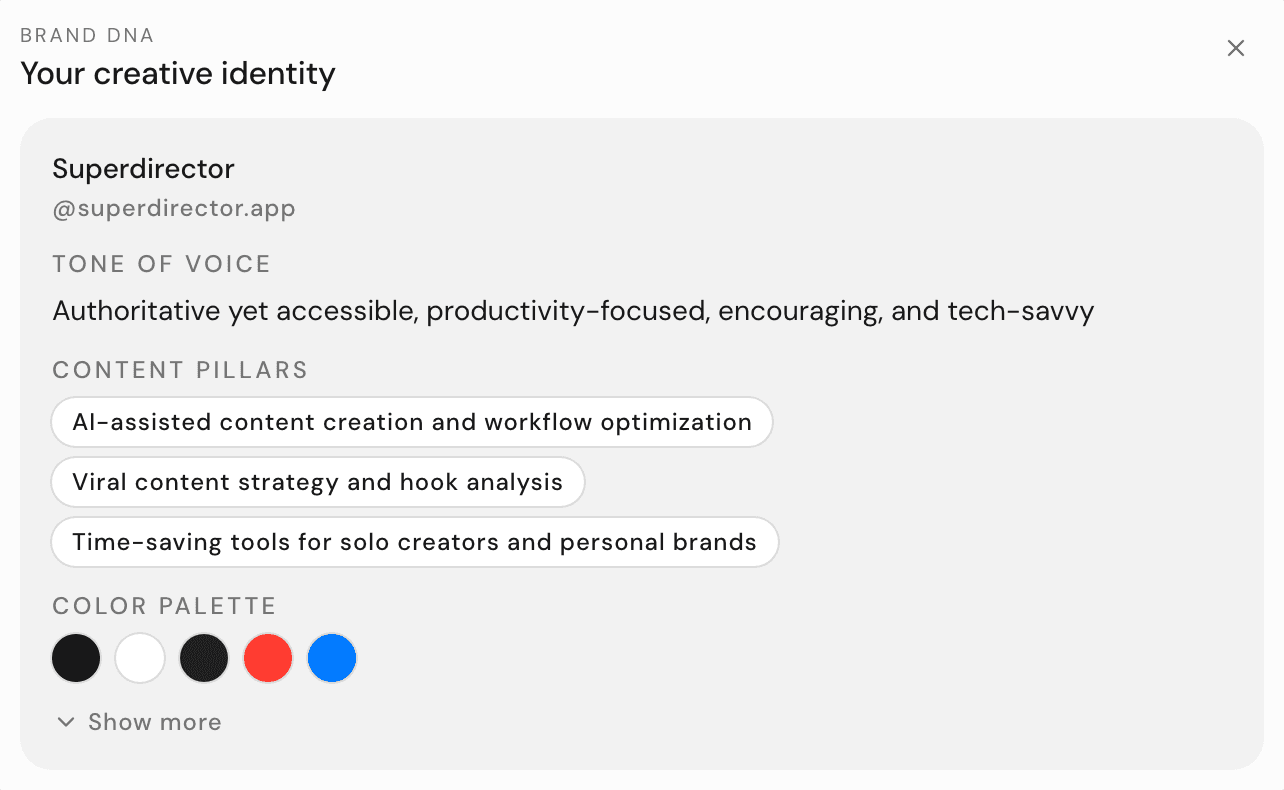
Brand DNA is a profile of your brand’s creative identity. It covers things like:
- Tone — how you sound (playful, direct, warm)
- Content pillars — the handful of topics you keep coming back to
- Color palette — the colors that show up across your videos
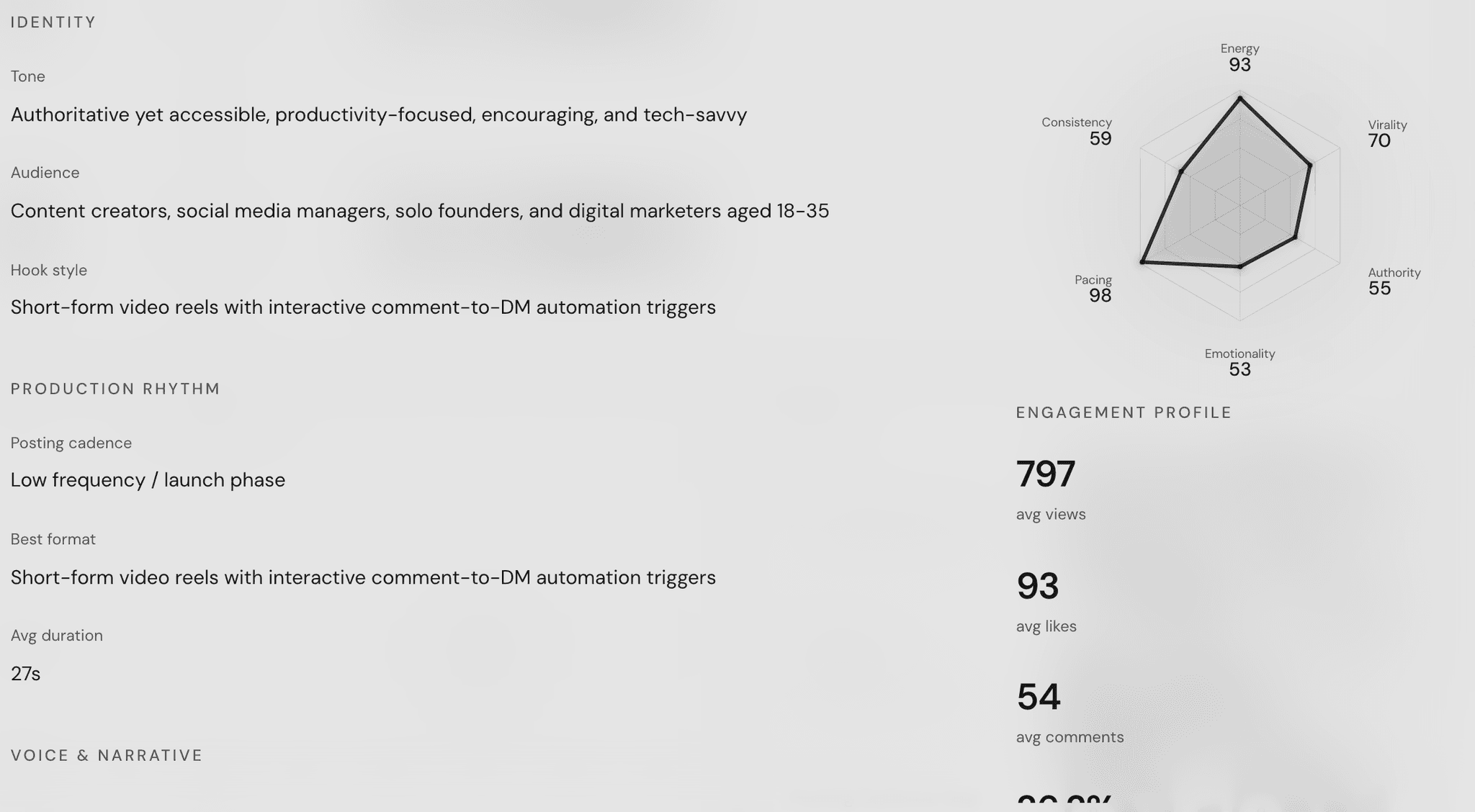
- Posting cadence — how often you publish
- Hook styles, narrative patterns, and editing pace — the way your videos open, flow, and cut
Your Director reads this before every piece of work it does for you. That’s why ideas and scripts come back sounding like you, not like a generic template.
What it’s built from
Brand DNA comes from your own recent posts and how people reacted to them. When your Director scans your account, it watches your latest videos, reads your captions, and looks at views, likes, and comments to learn which patterns actually work for your audience. Nothing is made up — every trait traces back to something you published.
Where to find it
There are two places to see your Brand DNA.
In chat: type "show my brand DNA" in any conversation. A Brand DNA card appears with the glance version — your tone, content pillars, and color palette. Click Show more to see the rest, including how your hooks, beats, framing, and editing tend to work.
In Overview: click Overview next to your profile picture in the top bar. The Account card shows a Brand DNA summary on the right — trait tags, your Color palette, and your Posting cadence. Click View DNA at the bottom of the card to open the full report: identity, production rhythm, voice, visual language, and more. From the report you can also export a PDF or Markdown copy, or use Copy to Notion to paste it anywhere.
Want a change of direction? Click Adapt the style at the top of the report, and your Director proposes a new mood, color, and tone for you to review — nothing changes until you approve it.
When it updates
Your Director checks your account every day and keeps your ideas and numbers fresh. When your direction genuinely changes, rebuild the DNA itself with Complete rerun (3 credits) — the steps are below.
If your scan is brand new, give yourself a week or two of posting before rebuilding — see Set up your first brand for how the first scan works.
Ask for a refresh
If you’ve changed direction — new niche, new style, a big batch of new videos — you can rebuild everything now:
- Open Overview.
- On the Account card, click the Manage button.
- Choose Complete rerun.
- Confirm with Rerun (3 credits).
This re-reads your latest videos, rebuilds your Brand DNA, and refreshes your list of similar accounts.
Your Brand DNA also powers what your Director watches for you: your idea feed and your competitor signals.