Add and switch between brands
Superdirector can track more than one brand at the same time. Each brand you add gets its own Director memory, its own ideas, and its own conversations. Adding a brand takes about a minute.
Each brand gets its own Director memory
When you add a brand, your Director studies that account on its own: its Brand DNA, its numbers, its competitors, and its ideas. Nothing mixes. A script you write for one brand never borrows the voice of another. Your conversations are separated too — each brand keeps its own list of threads.
Add a brand
- Open your dashboard.
- Find the row of brand photos in the top bar.
- Click the + button at the end of the row.
- Pick Instagram or TikTok.
- Type the account’s username — or paste its profile link — into the Username or URL field.
- Click Start tracking.
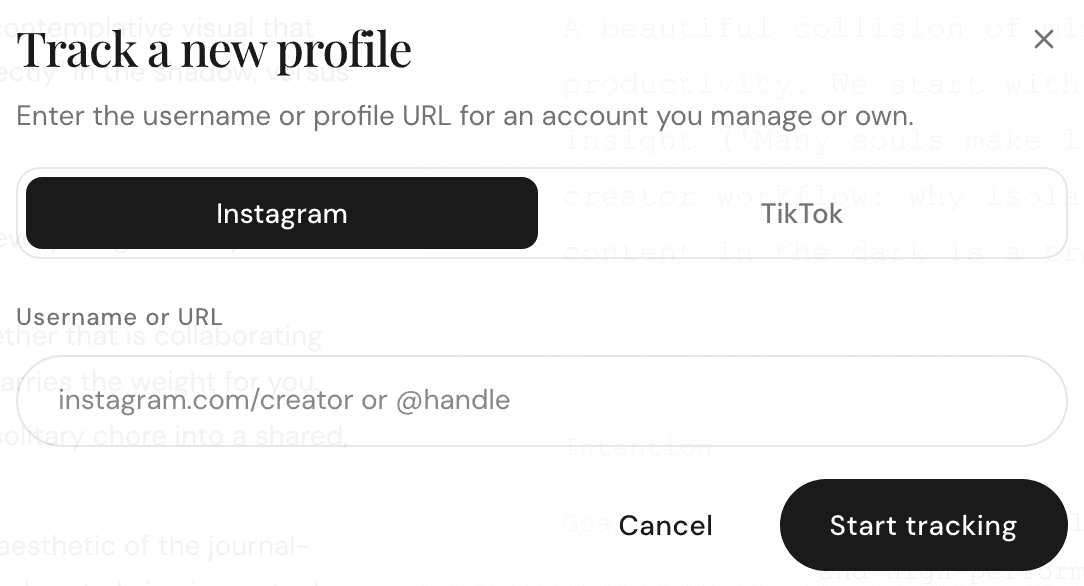
You’ll see "Tracking @handle…" for a few seconds while Superdirector fetches the profile and its first insights. Then it drops you straight into the new brand’s Overview. The deeper brand scan keeps running in the background — you can start chatting right away.
Switch brands from the top bar
- Look at the row of brand photos in the top bar.
- Click the photo of the brand you want.

That’s the whole switch. The chat, the threads, and the Overview button now belong to the brand you picked. Click a different photo any time to jump back.
How many brands your plan includes
The $29 plan includes 2 tracked profiles. The free tier includes 1. You can check your count any time: click your account icon in the top-right corner and look at the Tracked profiles row.
If you try to add a brand past your limit, a Profile limit reached message appears with your plan’s tracked-profile count and the line "Remove a profile or contact support to track more." Extra profile seats are not sold: remove a brand you no longer manage, then add the new one, or contact support.
Mention another brand in chat with @
You can pull any brand into a request without switching to it.
- Click into the message box.
- Type @ followed by the account’s username.
- Pick the account from the list that pops up. If it isn’t in the list yet, choose Analyze @handle and your Director looks it up for you.
- Finish your message and send it.

This works for things like "write a hook in the style of @theirbrand" or "compare my engagement to @competitor."