How-To Guide
Align a creator post’s time with analytics reported in another time zone
Record the post as one timestamp, name each report’s time zone, convert to one clock and start every window at the post instant, not a calendar date.
By the Superdirector editorial team. Platform time-zone help pages reviewed October 30, 2026.
At a glance
How do you align a creator post’s time with analytics in another time zone?
Record the post as one instant with its UTC offset and note whether it was confirmed public. Write down each report’s time zone and where you read it, or mark it not confirmed. Convert the post and every report’s bucket boundaries to one named reference clock. Start each window at the post instant and count only whole buckets that begin after it. Report the bucket that contains the post as partial, apart from the headline comparison.
- A calendar “day one” starts at a different instant in each time zone.
- Only whole buckets that begin at or after the post belong in the window.
- A zone you could not confirm is written as not confirmed, never guessed.
Direct answer
Short answer: write the post down as one instant with its UTC offset, write down which time zone each report uses, convert all of it to one reference clock, and start every comparison window at the post instant rather than at a calendar date. A day in one report is not the same stretch of time as a day in another. A post made at 22:30 in one zone is already tomorrow in a zone nine hours ahead, so “day one” can start at different moments in different reports. Where a report only gives daily buckets, call the bucket that contains the post *partial* and report it apart from the first whole bucket.
This is for a campaign owner or agency analyst who has a creator’s post time from one place and views, clicks or sessions from reports that may sit in other time zones: a platform’s own screens, a web-analytics property, an export to a spreadsheet. The decision is narrow: where does the comparison window start, and is it the same moment in every report? It does not decide whether the numbers are right, which source gets credit for a visit, or how long the window should run. Those have their own pages, linked in the boundary section.
The method needs no special tool. Use the blank alignment card, the CSV register and the clock map. All three are blank or made up for teaching. They contain no real platform setting, creator, campaign or result.
Fix the post as one instant
Start with the one fact every report has to be measured from: when the post went public. Write it as a date, a time and a UTC offset together, for example 2026-03-01T22:30-08:00, never as “March 1, evening”. A date and time without an offset names a different moment for every reader who is in a different zone. With the offset, anyone can convert it to their own clock and land on the same instant.
Then record where the time came from. A publish log, the platform’s own post screen, a message from the creator and a scheduling tool’s plan are four different kinds of evidence. A scheduled time is a plan, not an event: if the post was edited, delayed or posted by hand, the plan may be wrong. Mark each timestamp as *confirmed public at this time*, *scheduled time only* or *date only, time unknown*. The third kind is common, and it is fine, as long as the sheet says so. It makes the whole post day partial in step five instead of letting a guessed hour slip into the numbers.
Keep this record separate from any ad dates. If the post later becomes a paid ad, that is a second clock with its own start, and the post and Spark ad launch guide shows how to keep both. If the question is who posted what on which account, the account-to-post proof guide comes first, because a window anchored to the wrong post is wrong in every report.
Name each report’s time zone
For every report you will compare, write down the time zone it uses and where you read that. Do not assume that two reports in the same dashboard share a clock, or that a platform follows the viewer’s local time. The table lists what each primary page we read says about it, and, as important, what it leaves out. All pages were read on October 30, 2026; platform help changes, so reread the page before you rely on it.
| Source | What the page says | What it does not say |
|---|---|---|
| GA4 property reports | A property has a time zone. Google’s setup page says changing it only affects data going forward, that you may see a flat spot or a spike, and that a zone which honors daylight saving adjusts automatically. | Which zone *your* property uses; read that from your own property settings, not from the help page. |
| GA4 BigQuery export | The export schema describes event_date as the date in the registered timezone of the app, and event_timestamp as microseconds in UTC. | That a date column and a timestamp column fall on the same calendar day. |
| YouTube Reporting API bulk reports | The reports page says each report covers a 24-hour period from 12:00 AM through 11:59 PM Pacific Standard Time (UTC-8). | That the YouTube Studio screens use the same day boundary, or how the wording handles daylight saving time. We confirmed neither. |
| TikTok Ads Manager | TikTok’s time-zone page says the zone controls the time shown in reports, ad schedules and billing dates, and cannot be changed after registration. | Anything about the time zone of organic video analytics; we found no TikTok page that states it. The same page is inconsistent about daylight saving, so test it. |
| Instagram insights via Meta’s API | Meta’s insights page says timestamps in API responses use UTC with zero offset in ISO-8601 format, and its sample end_time values are written that way. | What local day a daily value belongs to. Supermetrics’ Instagram Insights notes say Meta’s API *appears* to use UTC-7:00 to determine days; that is a third party’s observation, not Meta’s statement. |
Two things stand out. First, three kinds of clocks coexist even inside one stack: a property or account zone, a fixed zone such as Pacific or UTC, and a raw timestamp in UTC. Second, for some surfaces we could not find any official statement at all. For those, write not confirmed in the cell. “Not confirmed” is a complete, honest entry, and it tells the reader the comparison is approximate there.
If you can, run a test row: take an event whose time you know, such as a post you made yourself or a test visit from a link you control, and check which bucket it lands in. A test confirms the day boundary only for that report on that day. It does not prove the setting never changes, so note the date you ran it, and note any setting change inside your window. Google’s own page warns that a property time-zone change shifts data only going forward, so a window that spans the change has two clocks in it.
Convert every report to one clock
Pick one reference clock for the whole sheet and write it at the top. UTC is the usual choice because it has no daylight saving changes, but any single, named clock works, as long as every row is converted to it. Do not pick “whatever the first report uses” unless you have written down what that is.
Convert in the same order each time. First convert the post instant to the reference clock. Then convert each report’s bucket boundaries: where a day starts and ends in that report’s zone, written in the reference clock. A report on a clock eight hours behind UTC starts its calendar day at 08:00 UTC; a report one hour ahead starts it at 23:00 UTC the evening before. Those are different starting lines, and the conversion row makes the difference visible instead of letting it hide inside a column labelled “Day 1”.
Watch the two places arithmetic goes wrong. Daylight saving: in a zone that observes it, the offset changes on a date, and the calendar day on that date is 23 or 25 hours long. If a window crosses a change, mark it *yes* in the sheet and convert each side with its own offset. Mixed columns: an export may hold both a local-date column and a UTC timestamp. Choose the timestamp for alignment and treat the date column only as a label. If a raw timestamp exists, it is usually the safest anchor because it needs no guess about a day boundary; just remember that GA4’s event_timestamp is documented as the time Google Analytics received the event, which can differ from when the visit happened.
Write each conversion as a sentence you could say aloud: “This report’s first whole day after the post starts at 08:00 UTC on March 2.” If you cannot say it, you have not converted it yet. For the reasoning behind keeping separate clocks apart, see the conversion observation-window guide, which decides how long to look; this page decides where to start.
When enlarged, scroll horizontally to read the diagram.
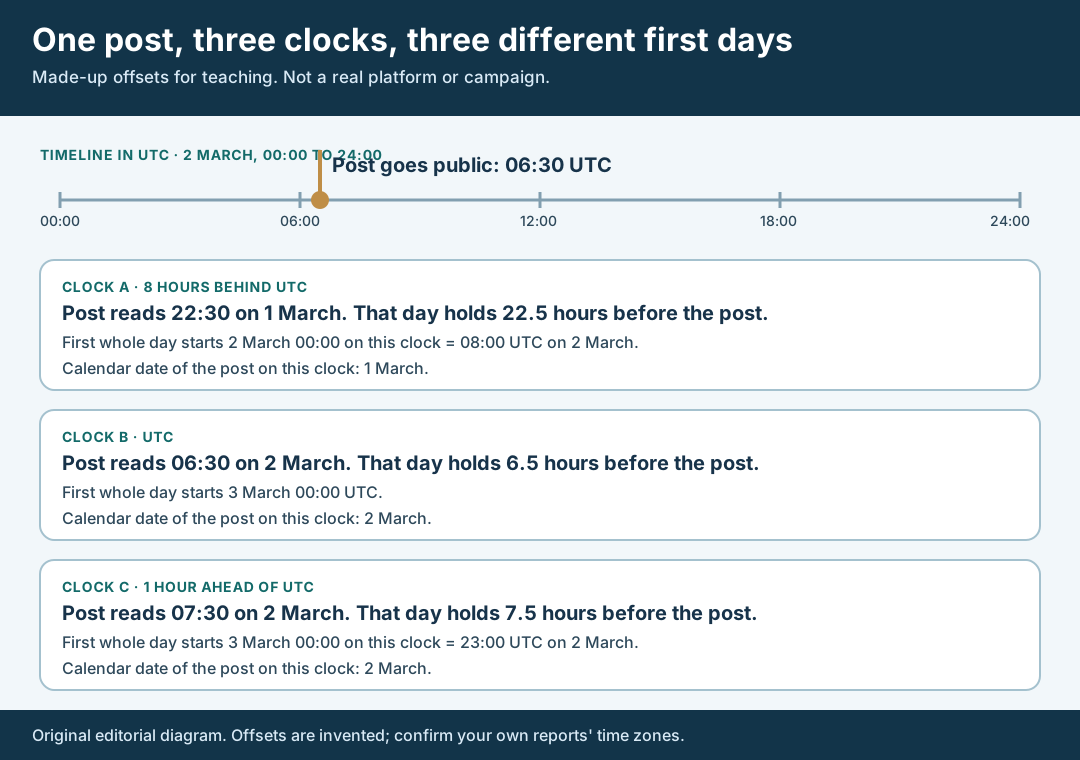
An original editorial diagram with invented offsets. The same instant gives different post dates and different first whole days.
Original visual by Superdirector editorial team. Creation date not recorded.
Start each window at the post instant
Now set the start of the window. The rule is simple: a window starts at the post instant, and counts only whole buckets that begin at or after it. The bucket that contains the post also contains hours from before the post. Those hours cannot have been caused by it, so they do not belong in a count that is meant to follow the post.
Where a report offers an hourly bucket, or an event-level timestamp, you can start at the exact post instant in the reference clock and cut cleanly. Where it only offers days, the first usable bucket is the first whole day that starts after the post. This has a consequence worth stating plainly: two daily reports in different zones cannot share an identical window. Their first whole days begin at different instants, and the gap between those starts equals the gap between their offsets. Say that in the sheet as a *window difference*; do not hide it by calling both columns “day one”.
Write the end rule once, for every report, in the reference clock: either a number of whole buckets, or a stated end instant, whichever the owner of the campaign chose. How long the window should be is a separate decision. The observation-window guide covers it, so this page does not set a length. Here you only need the end to be the same in every report, and to be written down before you read the numbers, so no one picks an end because it flatters a result.
Last, keep the start fixed. Reports are read at a moment in time, and a GA4 property time-zone change applies only going forward, so a second read next week may sit on a different clock or show different values for the same window. Record the date and time of each read in the sheet, and do not edit the start to fit a new read.
Flag partial buckets in the sheet
The sheet is where the honesty lives. For each report, add a partial-bucket flag with one of three values: *yes, reported apart* (a daily bucket contains the post, with hours before it), *no* (event-level or hourly data cut exactly at the post instant) or *unknown* (the time zone is not confirmed, or the post time is only a date). Never leave it blank.
Report the partial bucket on its own line, labelled, and leave it out of the headline comparison. If you must show a total, show two: one with the partial bucket and one without, and say which the client should read. A partial bucket can still be informative; it is just not the same measurement as a whole one. Dropping it silently loses information, and mixing it in silently overstates what followed the post.
Also store the settings that could move the numbers: the report’s zone, the date you checked it, a property time-zone change inside the window, and a daylight saving change inside the window. Each is one cell. When a reader later asks why two reports disagree on the first day, the sheet answers before anyone has to guess. If a report is missing altogether, the missing analytics guide shows how to say so in the client report without filling the hole with an estimate.
Walk through a fictional post
Fictional exercise: no real platform, creator, campaign or result was inspected, and the offsets below are invented. A made-up creator posts on March 1 at 22:30 on a clock eight hours behind UTC. The campaign owner wants the same start in three reports: Report A uses that same clock for its days, Report B is a raw export in UTC, and Report C uses a clock one hour ahead of UTC.
Converting the post instant: 22:30 on March 1 at UTC-8 is 06:30 UTC on March 2, and 07:30 on March 2 on Report C’s clock. So the calendar date of the post is March 1 in Report A and March 2 in the other two. Counting the hours the post’s own bucket holds *before* the post gives 22.5 in A, 6.5 in B and 7.5 in C.
| Report | Post reads as | Hours of the post’s day before the post | First whole day starts (UTC) |
|---|---|---|---|
| A (8 hours behind UTC) | March 1, 22:30 | 22.5 | March 2, 08:00 |
| B (UTC) | March 2, 06:30 | 6.5 | March 3, 00:00 |
| C (1 hour ahead of UTC) | March 2, 07:30 | 7.5 | March 2, 23:00 |
Three reports, three different “first whole days”, spread over sixteen hours: in order, A begins at 08:00 UTC on March 2, C at 23:00 UTC on March 2 and B at 00:00 UTC on March 3. The owner records the three starts, flags each post-day bucket as partial, and, where a raw timestamp exists, cuts the window at 06:30 UTC on March 2 instead. Nothing here predicts any real number, and the exercise says nothing about what a campaign should expect.
What this page does not decide
This method aligns where windows start. It does not make two sources agree on counts. Attribution rules, event definitions and processing delays are separate causes of disagreement, and fixing the clock does not remove them. For a platform-ads-versus-analytics gap, see the TikTok Ads and GA4 purchase guide; for a boosted post, the Spark ad and GA4 session guide; for organic and paid results on the same post, the organic and paid separation guide.
It also does not tell you how long to wait, whether a creator’s post time was well chosen for the audience, or whether a given platform’s numbers are complete. If the post is a joint Instagram post, the Collab metrics guide deals with the two accounts’ numbers.
Nothing here measures how often teams misalign windows, how large the effect is, or how many people search for this problem. Those figures are not available to us and are not claimed. The page is an editorial method for stating the start of a window honestly, and the only evidence it asks for is the post’s timestamp, each report’s stated zone and a test row where one is possible.