How-To Guide
How do you track organic social traffic in GA4 with UTM links?
Build consistent UTM links for unpaid social posts and inspect sessions, sources and campaigns in GA4. Includes an example and checks.
By the Superdirector editorial team. Google Analytics Help and a practitioner guide consulted November 9, 2026.
At a glance
How do you track organic social traffic in GA4 with UTM links?
Tag each external social link you control with utm_source, utm_medium and utm_campaign. Keep values consistent, test the final destination, then inspect session source, medium and campaign in Reports > Acquisition > Traffic acquisition. Use the channel label as one view of the traffic, not proof that every visit from social was captured.
- Use the same lowercase spelling for the same source, medium and campaign.
- Use utm_content to distinguish placements when the other campaign values stay the same.
- Traffic acquisition describes sessions; User acquisition describes where new users first came from.
Set a naming convention before you share links
To track organic social visits in GA4, add campaign tags to the external links you place in social posts, bios or replies. Start with three fields: utm_source identifies the source or referrer, utm_medium identifies the marketing medium, and utm_campaign names the promotion or initiative. Google recommends using all three on campaign URLs; their values appear in the Traffic acquisition report when Analytics receives the tagged click. See Google’s guide to campaign URL parameters.
Decide the vocabulary before links go live. For example, you might use instagram as the source, social as the medium for unpaid social activity, and spring-open-house as the campaign. The specific campaign name is your choice; consistency matters because UTM values are case sensitive. Instagram, instagram and insta can become separate report values. Keep a short shared worksheet with the destination, source, medium, campaign and placement so you can reuse approved spellings.
Use utm_content when you need to distinguish placements or creative links within the same campaign, such as a bio link versus a post link. Do not add tags to links between pages on your own site: UTMs describe incoming campaign links, not internal navigation. Avoid assuming that a custom medium will automatically appear in the Organic Social channel. GA4 assigns default channels using rules, and a source or medium that does not match a rule may be classified elsewhere.
Worked example: a tagged event-planning post
Hypothetical example: a small event-planning business is sharing a page about its sample event checklist. The team wants to distinguish Instagram placements while keeping them under one campaign. The destination is https://example.com/event-checklist. Use the same source, medium and campaign for both links, and change the content value to describe the placement.
| Placement | Source | Medium | Campaign | Content |
|---|---|---|---|---|
| Instagram bio | social | spring-open-house | bio | |
| Instagram post | social | spring-open-house | checklist-post |
The hypothetical bio URL would be https://example.com/event-checklist?utm_source=instagram&utm_medium=social&utm_campaign=spring-open-house&utm_content=bio. The post URL uses the same values but ends with utm_content=checklist-post. This arrangement answers two different questions: source and medium identify the origin and channel convention, while content distinguishes the placement. Google documents utm_content as a way to differentiate creatives; here it is used to distinguish link placements.
- Copy the correct destination and append the chosen parameters. Use ? before the first parameter if the destination has no query string; use & to add parameters after an existing query string.
- Open each finished link and confirm that it reaches the intended page. If a redirect is involved, check the final address as well as the original link.
- Record the exact URL and placement in the worksheet. Do not rename the campaign midway through the initiative unless you intend to report it as a separate value.
When enlarged, scroll horizontally to read the diagram.
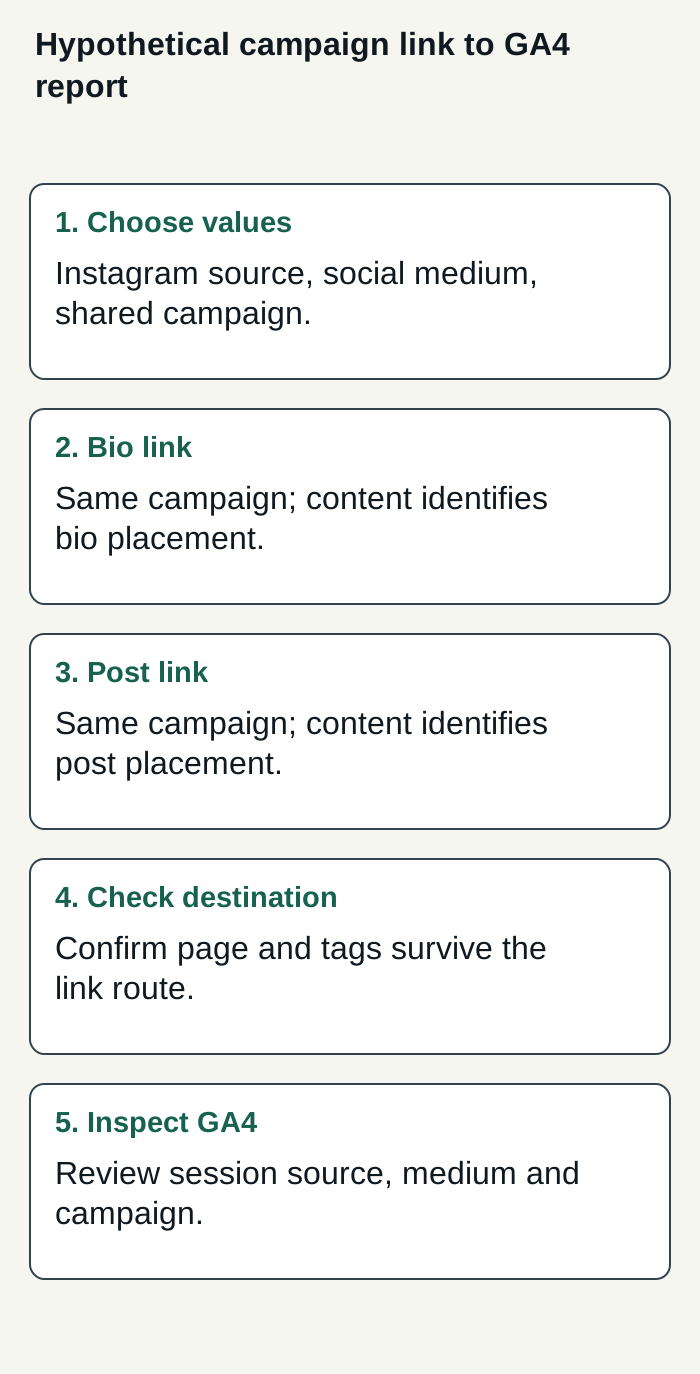
Hypothetical event-planning campaign showing consistent UTM values, distinct link placements, a destination check and the GA4 session dimensions to inspect.
Condensed original editorial illustration. Read the surrounding guidance for qualifications and the complete procedure; any example is fictional and shows no verified customer outcome or product screen.
Illustrative worked example by Superdirector editorial team. Created 2026-11-09.
Check the URL and report dimensions
After a link is live, open the shared link as a visitor would and confirm the destination is correct. Check that the campaign parameters are present in the address that reaches the site. This is a link check, not proof that GA4 has recorded a session: no live property or test result is available here, and a person’s browser or the route through a platform may affect what Analytics receives.
In GA4, go to Reports > Acquisition > Traffic acquisition. Google describes this report as a way to understand where website and app visitors come from. Start with a session-scoped dimension such as Session source / medium, Session campaign or Session default channel grouping. If the table is grouped by channel, filter or search for Organic Social; then inspect the source, medium and campaign values to understand what sits behind the label. The Traffic acquisition report guide explains the report and its dimensions.
You can also find manually tagged campaign dimensions in the Manual report when it is available in your property. Google says that report shows manually tagged campaign traffic when a website click URL successfully sends UTM parameters. Its dimensions include Session manual source, Session manual medium and Session manual campaign name. Report navigation and available dimensions can vary with the property’s report setup; consult Google’s Manual report documentation.
Use session dimensions when asking which campaign source was associated with a visit. Traffic acquisition includes new and returning users’ sessions; User acquisition answers a different question about where new users came from. Google explains this distinction in its Traffic acquisition report reference.
Read the result without overclaiming
Once you find a campaign row, compare the measures that match your goal. Sessions can indicate how many sessions are associated with the row; key events can show activity you have configured as a key event. Neither measure, by itself, establishes why people acted or whether the social post caused a business outcome. Write down the date range, dimension and metric you used so a later comparison uses the same basis.
Treat channel grouping as a classification, not a complete inventory of social visits. A visit may lack tags, arrive through a route that does not preserve them, or have source information that GA4 cannot classify as expected. Missing UTM parameters can also leave not-set values in reporting. Google’s channel groups are rule based; use the source and medium values to investigate unexpected classifications rather than assuming that every tagged link belongs in Organic Social.
A useful review worksheet can be as simple as: campaign name; placement; exact tagged URL; link check completed; GA4 date range; session source / medium; session campaign; sessions; key events. Leave the observation fields blank until you inspect your own property. This separates the setup you control from actual reporting results, and makes discrepancies easier to investigate without inventing a baseline or promising that every click will be attributed.
For a first check, compare the expected source, medium and campaign with the values actually reported. If the campaign is missing, check the link spelling and landing URL, then verify the report’s date range and dimension. If the channel is not Organic Social, review the observed source and medium against GA4’s channel rules. Do not change several naming values at once; that makes it harder to identify which change affected the reporting.
Where Superdirector fits
Delegating content and measuring website visits are separate decisions. Superdirector Growth is a $199/month package for two accounts, with no trial, for businesses considering an AI-run channel toward a defined goal. Research, saved brand context and creation explain delivery. Current publishing covers eligible Instagram image carousels and single X text posts by per-piece approval or an enabled account Auto-post rule. Finished video and full autonomy are upcoming. Keep the GA4 and UTM work in this guide under an assigned owner; the public package description does not establish that it measures or attributes your website results.
The publishing guide covers account connection and source-card selection. The implementation requires a hand-approved post verified live before Auto-post activation. Turning the rule off stops unsent posts, and Pause posting holds the queue. Evaluate actual review time and your own business outcomes alongside tracked visits; neither results nor minimal oversight are guaranteed.