How-To Guide
What to do when a scheduled post fails to publish
Check the platform before retrying. Use the scheduler's state and exact error to choose a next step, check authorization or ask for help.
By the Superdirector editorial team. Revised November 9, 2026.
At a glance
What do you do when a scheduled post fails to publish?
Check the native platform before resending: a failed or unconfirmed scheduler status does not prove the post is absent. If it is live, stop. If it is not, record the exact status and error, use that message to identify a likely cause, correct it, and retry only when you can do so without risking a duplicate. Check the platform again afterward.
- Verify publication on the account itself before retrying.
- Treat “Not confirmed” as uncertainty, not a confirmed failure.
- Fix the error-specific cause and confirm the result on the platform.
Start with the post’s actual status
When a scheduled post appears to fail, check the platform account before sending it again. A scheduler’s error or missing confirmation does not, by itself, prove that nothing went live. If you find the post on the account, do not retry it. If you cannot find it, record the scheduler’s state and exact error before changing the post or its connection.
Then follow the message rather than applying a generic fix: check for a sign-in or permission issue, a media problem, a platform restriction, a missed scheduling step, or a post waiting for your action. Fix the indicated issue, retry only when publication status is clear, and verify the result on the platform. There is no single retry rule that applies to every platform and scheduler.
- Check the post on the native platform.
- Record the scheduler state and exact error.
- Match the message to a likely cause.
- Fix the stated issue before any retry.
- Check the platform again and note the outcome.
Separate failure from uncertainty
Schedulers may distinguish a confirmed failure from a post whose result has not been confirmed. Superdirector’s publishing documentation, for example, lists “Didn’t post” and “Not confirmed” as separate states. It says that Scheduled, Posting, and Not confirmed do not mean a post is live. For an unconfirmed post, the documented next step is Check status. That is a product-specific workflow, not a universal rule for every scheduler.
Use the native account as a practical cross-check. Look for the post in the platform’s feed or profile, and check the platform’s own scheduled-content view if one is available. Search using the expected caption or another recognizable detail. If you find the published post, leave it alone rather than creating a duplicate. If the scheduler and platform still disagree, save what each shows and ask the scheduler’s support team before sending again.
| What you see | How to interpret it | Next action |
|---|---|---|
| Post appears on the platform | It is live, even if the scheduler’s state looks wrong or late. | Do not retry. Save the post’s link or note where you found it. |
| Scheduler says Not confirmed | The result has not been confirmed; that is not proof either way. | Check the platform, then use the scheduler’s status-check action if offered. |
| Scheduler says Didn’t post; post is absent | There is evidence of failure, but the error still matters. | Record the message and follow its specific remedy. |
| Post is awaiting your approval or action | It may not have been sent automatically. | Open the scheduler’s prompt and follow its instructions. |
Capture the error before changing anything
Write down the exact error, platform, account, scheduled time and time zone, and the scheduler’s displayed state. Note whether it is one post or several. This small record makes it easier to search the right help article or explain the problem to support. If you can, keep a screenshot that does not expose sensitive account information.
Avoid guessing from a vague label such as “failed.” The same label can conceal different issues, and a connection reset or edit may change what information is visible. Use the words shown in the error to find a matching entry in the scheduler’s own help library. Error libraries such as Buffer’s Instagram guide organize advice by particular messages; the recommended fix depends on the message, and the guide does not establish how often each cause occurs.
Choose the remedy that matches the message
Treat the message as a clue, then check the relevant account or post detail. Avoid changing several things at once: if the next attempt works, you will otherwise have little idea what resolved it.
| Clue in the error | What to check | Reasonable next step |
|---|---|---|
| Sign-in, authorization, or permission | Whether the connected account still grants the required access; whether the platform asks you to sign in. | Follow the scheduler’s reconnect instructions, then check that the connection is active before retrying. Superdirector’s documentation, for example, directs users to Reconnect when sign-in is required. |
| Account type or restriction | Whether the platform shows an account notice or asks for an action. | Address the platform’s prompt directly. Buffer’s Instagram guide describes account-restriction cases that require following instructions in Instagram. |
| Media upload, format, or download | Whether the asset is available and whether the error identifies a media problem. | Re-upload or replace the affected asset only if the message points to it; use the relevant platform and scheduler specifications. |
| Rate, spam, or content restriction | Whether the message asks you to wait or change content. | Follow the error-specific instructions. Buffer’s Instagram guide gives distinct advice for different restriction messages; do not treat one case as a general platform rule. |
| Unexpected time or no scheduled time | The post’s saved time, time zone, and whether it is actually scheduled rather than a draft. | Correct the schedule or choose a new time. Superdirector’s documentation says a post without a scheduled time will not publish automatically. |
| No clear cause, several posts affected | Whether other posts or accounts show the same problem; any available platform or scheduler status notice. | Pause further retries while uncertain and contact the scheduler or platform support with your record. |
Worked example: an unconfirmed carousel
Consider a hypothetical café whose scheduler shows an Instagram carousel as Not confirmed. This is an illustrative decision, not a customer result. The operator first checks the connected café account and finds the exact carousel already live. They save its link and the scheduler state, leave the live post in place, and ask support about the inconsistent status. They do not reconnect the account or retry a post that is already visible.
If the carousel were absent instead, the next action would depend on the actual error and the scheduler’s own instructions. Keep the account, time zone and exact message together. Do not treat a missing confirmation as permission to send another copy.
When enlarged, scroll horizontally to read the diagram.
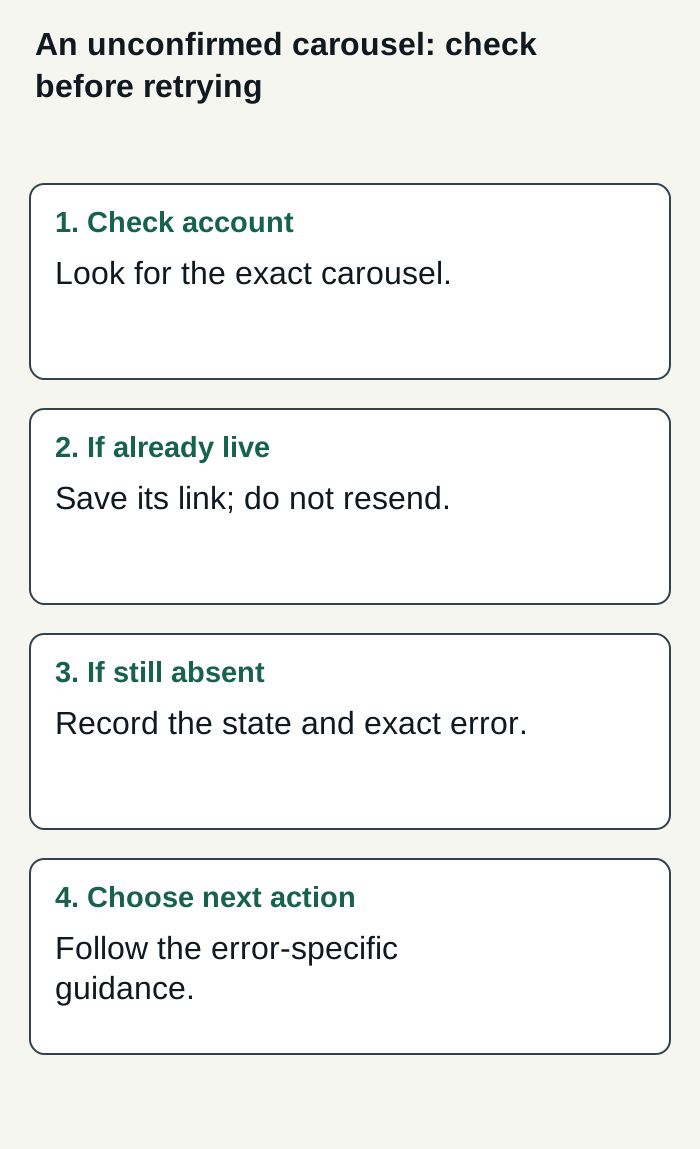
Hypothetical café publishing decision; no actual customer or publication outcome is represented.
Condensed original editorial illustration. Read the surrounding guidance for qualifications and the complete procedure; any example is fictional and shows no verified customer outcome or product screen.
Illustrative worked example by Superdirector editorial team. Created 2026-11-09.
Buying help with channel operations
A customizable AI-run channel around $200 a month can delegate parts of the work—such as preparing eligible posts and publishing them under your chosen approval setting—but it does not yet mean a fully autonomous channel or guaranteed results. Growth currently costs $199 a month for two accounts, with no trial. Publishing is limited to eligible Instagram image carousels and single X text posts, either approved individually or covered by an enabled account Auto-post rule. Finished video and full autonomy are upcoming. Before enabling Auto-post, the account’s first hand-approved post must be verified live. Account connection and the source cards you select define what can publish. See the publishing documentation for the workflow; turning Auto-post off stops unsent posts, and Pause posting holds the queue. For this troubleshooting task, Superdirector can help prepare and publish within those limits, while you still check whether a post actually went live before retrying. Assess your own review effort and customer-defined results rather than assuming time savings or outcomes.