How-To Guide
Promote the session behind a Live Activity, not an always-on dashboard
Build a Live Activity demo around a bounded session, a useful glance and a clear ending without implying permanent visibility or fresh data.
A Live Activity is most convincing when the viewer understands the task it accompanies. Show why the session starts, what the glanceable information helps someone decide, and what happens when the task finishes. Do not sell a temporary system presentation as a permanent dashboard.
For an app founder, this is a creative-selection problem: is the feature useful enough to lead the launch, or is it a supporting detail inside a stronger task demonstration?
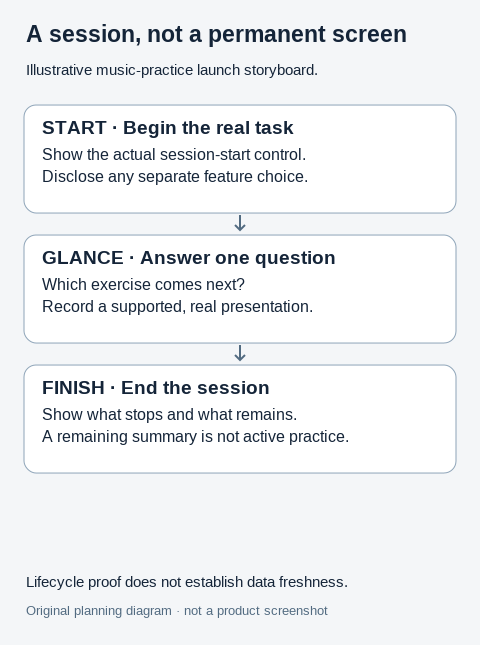
Original session storyboard: start, glance and finish without implying permanent visibility.
 Superdirector
Have your AI do this for your brand.
7 days free, then $29 a month.
Choose a bounded occasion
Apple's Live Activities design guidance favors tasks with a beginning and end, relevant information and user control. It also says Live Activities should not display advertising or promotions. Marketing the feature in a launch video is different from putting a marketing message inside the Live Activity itself.
Start with a sentence such as: “During a practice session, the musician can check which exercise is next.” This gives the glance a purpose. “Our app has Dynamic Island support” names a surface, not the reason someone would use it.
For a fictional music-practice app called Interval Desk, imagine a supported session containing warm-up, scales and an original exercise. The example below is a filming plan, not a tested app or a claim of continuous background execution.
Build a three-scene session story
Scene one: start. Show the real action that begins the practice session. Identify whether the Live Activity begins as part of that action or requires a separate choice. If the product has a permission or availability limitation, explain it in the appropriate setup help. Do not edit an already-running session into a first-use sequence.
Scene two: glance. Move to the supported system presentation and show the information that matters: the current exercise and the next action, if those are genuinely implemented. Keep the phone in a safe, ordinary setting. A brief view should answer one question, not reproduce the entire app screen in miniature.
Scene three: finish. End the session using the actual product control. Show what remains visible and what no longer runs. If there is a summary, distinguish it from an active session. Do not loop the middle scene and describe the display as permanent.
Treat stopping as part of the benefit
A feature that appears at the right time but is hard to dismiss can become an unwanted interruption. Include a short control note in the creator brief: how the person ends the relevant session, and how the product handles someone who does not want this feature.
Apple advises ending the activity when the task ends and offering understandable control. That is design guidance, not proof that your app follows it. Rehearse the current implementation before narrating the stopping behavior.
In the fictional practice example, “Keep the next exercise visible while you practice” is a more bounded promise than “Never open the app again.” The latter would require evidence about every action, interruption and device state a customer might encounter. Most launch videos do not supply that evidence.
Do not use a screen overlay as product evidence
Record the actual presentation on a supported device. If you use a diagram to explain the planned flow, visibly label it as an illustration. Do not place a designed mock Dynamic Island over unrelated footage and imply the app produced it.
Keep the important information legible in the final social crop. Enlarging a real capture for explanation is different from inventing a button or replacing the displayed data. Label edited magnification when it could otherwise be mistaken for the native size.
Avoid sensitive information in the public recording. Use an original exercise label rather than a real person's appointment, location, private message or health record. A feature visible outside the main app can expose information to bystanders as well as the video audience.
Distinguish lifecycle from freshness
This article asks whether the session starts and ends appropriately. It does not establish the freshness of the displayed data or a guaranteed update frequency. If the creative also says “always current,” that is a separate claim requiring separate evidence.
For the related distinction between a moving time display and new underlying information, see the widget-freshness demonstration guide. Do not use a passing session rehearsal to fill that evidence gap.
A historical Clear user feature request describes wanting a manually triggered list visible on the Lock Screen. It is an attributable user preference, not proof of broad demand, a current Clear capability or a universal visibility duration. The useful question it raises is when the person wants the activity present—and when they do not.
Adapt the story, not just the aspect ratio
For a short Instagram or X clip, keep the start, glance and finish recognizable even if each gets only one shot. For YouTube, show the complete session-control path and identify the tested device context. Do not imply that one iPhone recording verifies all appearances on other devices.
Ask a reviewer three questions: What began the session? What useful decision did the glance support? How would you stop it? If they believe the feature runs forever or replaces the whole app, change the explanation.
After publication, distinguish interest in the clip from people who start a session, use the feature and complete the underlying task. No conversion lift is established by the storyboard. The creative earns its place when it explains a useful temporary companion to the task, rather than treating a system animation as the product.
Frequently asked questions
What stopping behavior belongs in a Live Activity creator brief?
SuperdirectorHave your AI do this for your brand.
7 days free, then $29 a month.