How-To Guide
Show Apple Watch interval alerts without an expensive outdoor shoot
Film three Apple Watch interval-app demonstrations that separate visible alerts, recorded audio and wearer-reported haptics.
By the Superdirector editorial team.
At a glance
My Apple Watch running app has a working beta but no users. How can I show its interval alerts in short videos without expensive outdoor filming?
Film the real watch changing state, pair it with readable explanatory text and distinguish what the camera can show from what a wearer can feel. A tabletop or seated demonstration can explain an interval-alert interface without pretending to be a run. Keep one continuous recording of the actual transition, label any compressed wait and do not present an added sound effect as proof of a haptic alert.
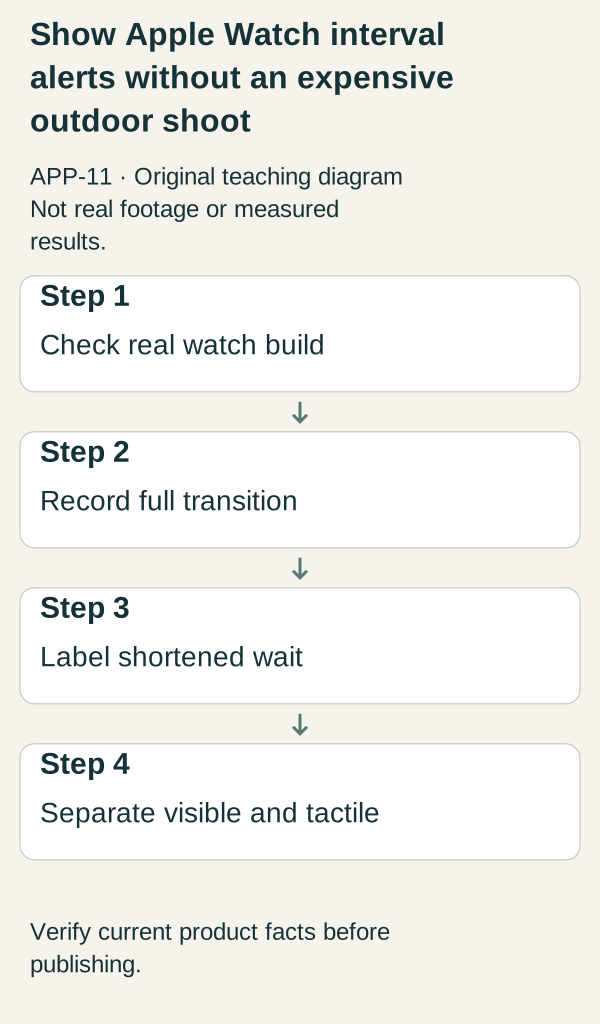
Original illustrative teaching diagram. Record a real Watch transition, disclose a shortened wait and distinguish visible alerts from tactile proof. This is planning guidance, not product footage, customer evidence or measured results.
Original visual by Superdirector editorial team. Created 2026-10-20.
Film the real watch changing state, pair it with readable explanatory text and distinguish what the camera can show from what a wearer can feel. A tabletop or seated demonstration can explain an interval-alert interface without pretending to be a run. Keep one continuous recording of the actual transition, label any compressed wait and do not present an added sound effect as proof of a haptic alert.
Name the claim you are trying to prove
An interval app may display a change, play a sound or produce a haptic signal. Those are different behaviors. A video can show the display and record an audible signal under the filming conditions. It cannot directly transmit the wearer’s tactile experience. A founder saying “I felt it” is a report from that test, not a guarantee that every runner will notice it.
The fictional app IntervalNote is a teaching label. Its actual watch features, supported devices and beta access have not been verified. Before filming your real app, write down the device model, operating-system version, app build, selected interval settings and the alert behavior you will check. Do not turn a design mockup into apparent device footage.
A low-cost capture setup
Use a phone you already own to film the watch on your wrist or on a stable support. Keep the display readable, clean the lens and remove distracting personal notifications. Use a plain background and consistent light. These are production suggestions, not a requirement to buy a particular camera or lighting kit.
Capture a short test before the whole sequence. Check reflections, focus and whether the alert state is legible. If the screen cannot be read, move the camera or change the light rather than rebuilding the interface in the editor and calling it a recording.
If you use a simulator, label it “Simulator demonstration” throughout. A simulator can illustrate an interface, but it does not establish real-watch haptics, outdoor visibility or behavior during a run. Do not assume any capture command works on your device without checking its actual tooling.
Demo one: the visible transition
Opening text: “What changes when the next interval starts?” Begin on the real watch showing the current interval. Record continuously through the transition. Keep the final state on screen so the viewer can read what changed.
Narration: “This recording shows the display changing from this interval to the next.” If the real test also produces a recorded sound, identify it accurately. Do not add a beep and leave viewers to assume it came from the watch. If you use editorial audio for emphasis, label it as added sound.
When the interval wait is too long for the export, retain the full source and mark the cut “Wait shortened.” Keep a short portion before and after the transition uninterrupted. A countdown graphic drawn in the editor must not imply a measured synchronization result unless you actually performed that test.
End with the checked beta-access information. Do not claim “never miss an interval” from one controlled recording.
Demo two: understand the setup
Opening: “Here is what I set before this example.” Show the actual settings that determine the filmed intervals. Pair a readable screen capture with real watch footage only if each source is accurately labeled. If configuration happens on a paired phone, show that dependency rather than implying the watch does everything independently.
Narration: “These are the settings used for this demonstration.” Use values chosen for the production test and identify them as demo settings, not a recommended workout. Show the confirmation or start action and the corresponding real watch state.
Close with a compact explanation of what users need: actual supported device, app access and any verified setup dependency. If your beta requires an invitation, say so. A working founder build is not the same as public availability.
Demo three: pause, resume or finish
Opening: “What if I need to stop?” Film the actual control available in the current build. Choose one path and show its resulting state. If the app cannot resume a stopped session, explain the limitation instead of hiding it through a cut.
Narration: “This is what the current beta does when I use this control.” Keep the label narrow. Do not imply emergency suitability, background reliability or battery performance from a simple interface demonstration.
If you include a short real movement segment, use a safe, ordinary situation and have another person handle filming where appropriate. Do not operate a camera while navigating traffic or stage a seated shot as a live run. The transition demo and setup explanation can stand alone without outdoor footage.
A reusable evidence sheet
For each video, record the source filename, device and build, real or simulator capture, settings, observed visible behavior, observed audible behavior, reported tactile behavior, omitted time and unresolved limitations. This separates three levels of evidence that an attractive edit can easily blur.
A completed fictional row might read: “Source A; real watch planned; demo interval settings; visible transition to be checked; audio unknown; haptic experience not captured by video; no performance claim.” Notice that unknown fields remain unknown. Do not fill them with expected behavior before the test.
After filming, replace the planned fields with what actually happened. If the alert fails, save the recording for debugging and do not manufacture a successful output in the launch edit. A beta limitation can be explained honestly, but a broken core demonstration may mean the invitation is premature.
Review the claim and the creative separately
Watch the export without audio. Can a viewer see the interval change and identify any shortened wait? Then listen without looking. Does the narration claim a tactile or reliability result the evidence cannot support? Finally inspect the CTA: does it lead to the actual beta details rather than an unavailable store listing?
The Framy Apple Watch demo guide discusses single-interaction capture and device framing. The supplied source study notes that it does not demonstrate interval haptics or validate capture feasibility for this specific app. A decorative Watch shell is a composition choice, not a substitute for real-device evidence. Its pricing and export capabilities were not independently tested here.
Next action
Record one continuous interval transition at your desk. Write down exactly what you can see, hear and only report feeling. Build the first video from that evidence, and leave the claims about actual running conditions for a separate, properly observed test.