How-To Guide
Which AI video generator should take your script, and how do you prepare it?
Two kinds of tool take a script: assemblers and clip models. See which fits, how to cut a script into clip-sized shots, and what to check before you post.
By the Superdirector editorial team. Vendor documentation and the YouTube policy page read October 31, 2026.
At a glance
Which AI video generator should I use if I already have a script?
Match the tool to what your script carries. If the narration is the message and stock or generated background visuals are acceptable, use a script-to-video assembler, which splits the text into scenes, picks visuals, adds a voice-over and returns an editable draft. If you need specific shots, use a clip model, but treat the script as raw material: documented clip lengths are short (3 to 10 seconds for Google’s Gemini Omni Flash, 4 to 20 seconds in OpenAI’s guide), so cut the script into beats, write one prompt per beat with one camera setup and one action, keep the wording of characters and setting identical across prompts, and check every clip against the script before you join them.
- A clip model reads a prompt for one short shot, not a whole script; the conversion from script to shot prompts is the work you do.
- Read the script aloud with a stopwatch to time each beat instead of guessing from word counts.
- Realistic generated footage may need a disclosure label on the platform where you post it.
Direct answer
Short answer: a script is the *input* to one kind of AI video tool and only *raw material* for the other. A script-to-video assembler takes your text, splits it into scenes, selects a visual for each, adds captions and a voice-over, and gives you an editable draft. A clip model such as Google’s Gemini Omni Flash or OpenAI’s Sora generates a single short clip from a prompt; it does not read a 30-second script and return a 30-second video. If you pick a clip model, the job that decides the result is converting each line of the script into a shot prompt a clip can actually hold.
This page is for a marketer, founder or social manager who already has a script, or an approved set of lines, and wants to know which tool category fits and how to prepare the script for it. It describes what each vendor’s own documentation says, then walks through a fictional 28-second script to show the conversion. It does not rank products, claim any tool produces a given quality, or tell you what a video will cost. Model names and limits change quickly: Google’s video page, for example, says its Veo 3.1 preview models were shut down on October 22, 2026, so check the current documentation before you commit to a tool.
Use the original script-to-shots diagram and the blank shot sheet to hold your own beats. The sheet contains no script, prompt or result.
Decide which kind of generator your script needs
Start from what the documentation of each category actually describes, because search results blur them together. Pictory’s API documentation describes a pipeline that analyses the text, splits it into scenes, selects visuals, generates animated captions and renders the file. Google’s and OpenAI’s documentation describe a prompt in and one short clip out.
| Script-to-video assembler (Pictory docs) | Clip model: Gemini Omni Flash (Google docs) | Clip model: Sora (OpenAI prompting guide) | |
|---|---|---|---|
| What you hand it | Text in one or more scenes, each with a “story” field | A text prompt, optionally images or short video references | A text prompt for one clip, with an optional reference image |
| Unit of output | A scene, then a whole rendered video | A clip of 3 to 10 seconds at 24 FPS | A clip of 4, 8, 12, 16 or 20 seconds |
| Where the visuals come from | Stock images and videos selected from the scene text; generated visuals are covered in a separate guide | Generated by the model; image-to-video and subject references are listed | Generated by the model; a character reference can be uploaded once and reused |
| Speech | A separate AI voice-over step | Audio is generated by default; voice editing and audio references are not supported | Dialogue goes in the prompt; long, complex speeches are unlikely to sync well |
| What you control | Where scenes break, scene text, keywords that steer visuals, scene length | Shot wording, timing in natural language or timecodes such as 0-3s, whether it is one continuous shot | One camera setup and one subject action per shot, lighting and palette |
Sources: Pictory text-to-video API guide, Gemini API: Omni Flash and its model page, and OpenAI’s Sora 2 prompting guide.
The choice, in our reading, comes down to three questions. Does the narration carry the message? An explainer, a how-to or a news-style summary is mostly words, and an assembler is built to lay visuals under words. Do you need a particular shot? A specific person, setting, camera move or product moment is something only a prompt can ask for, which points to a clip model. Must the real product appear accurately? Neither category can be assumed to reproduce your actual product or packaging from a text prompt. Google lists image-to-video and subject-reference inputs, which is the closest documented route for a clip model, and Pictory’s help centre says you can upload your own visuals for a scene. Otherwise film or photograph the product yourself and use generated footage only around it. That third point is our editorial judgment, not a vendor claim.
Cut the script into beats a single clip can hold
A beat is a stretch of script during which the picture should stay on one idea. Mark a beat wherever the viewer should see something new: a new problem, a new object, a change of place. Then time each one by reading it aloud with a stopwatch. Word counts are a poor guide because pauses, product names and emphasis change the pace, and the number you need is how long the voice or on-screen action takes.
Then compare each beat with the longest clip the tool will give you. Google’s model page lists 3 to 10 second output, so a 12-second beat has to be split or extended. OpenAI’s guide says the model “generally follows instructions more reliably in shorter clips” and suggests that stitching two 4-second clips may work better than one 8-second clip. If you plan to extend a clip, Google’s documentation describes extending in steps of up to 10 seconds to 40 seconds in total, and extending can only add to the end of a clip. In practice that means beats of 4 to 8 seconds are the safer unit for either vendor, an inference from those two statements rather than a tested rule.
If you chose an assembler, the cut is different but just as real. Pictory’s API documentation lets you start a new scene at each line break or at the end of each sentence (both options default to off in the API), and its help centre describes the same two settings in the text editor, where they are on by default. Its help centre also says to finish text edits and scene splits before applying a voice-over, because a split changes the voice-over. Put your beat marks in the script as line breaks before you paste it.
When enlarged, scroll horizontally to read the diagram.
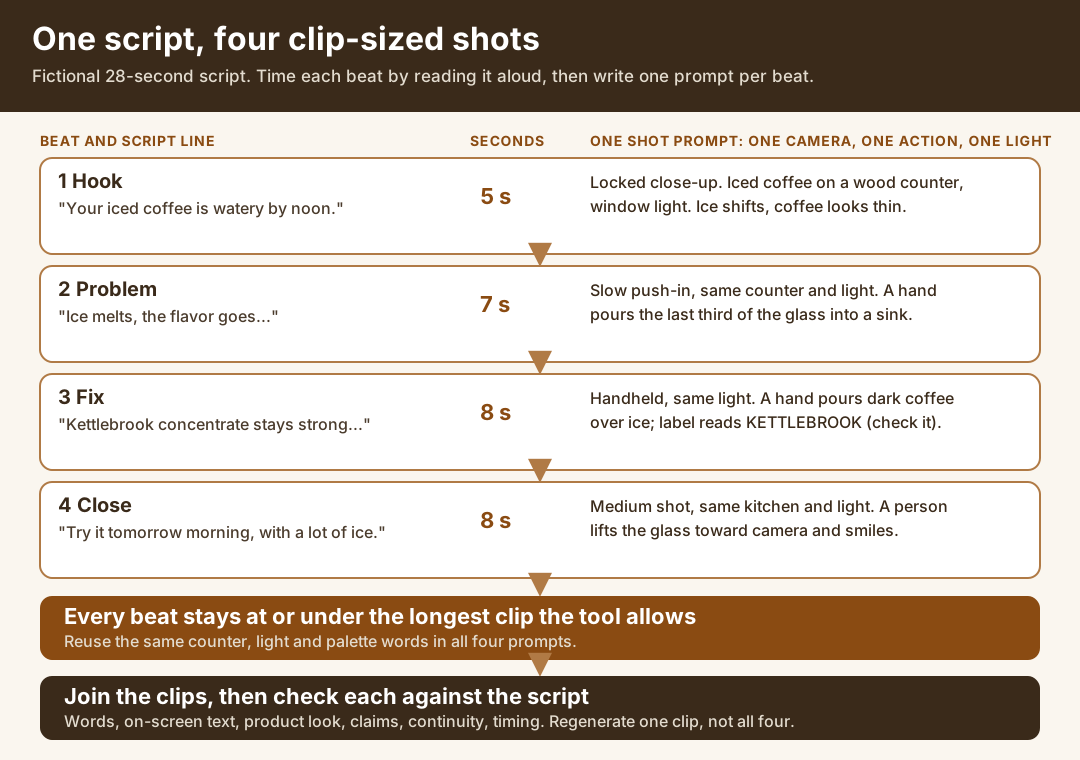
An original editorial diagram built on a fictional script. It shows the conversion step, not a tool result.
Original visual by Superdirector editorial team. Creation date not recorded.
Turn each beat into one shot prompt
OpenAI’s guide gives the rule that makes this step tractable: each shot should have one camera setup, one subject action and one lighting recipe, and multiple shots in one prompt should stay in distinct blocks. Describe the action in beats or counts, and put dialogue on its own lines apart from the prose. Google’s documentation adds two usable tips: if you want a single scene, say so explicitly, for example “single continuous shot” or “no scene cuts”, and if text must appear in the frame, give its exact wording. It also says negative phrasing such as “No dialogue” can remove elements.
Fictional worked example: no real brand, product or result. A made-up cold brew concentrate called Kettlebrook has a 28-second script. Timed aloud, it falls into four beats.
| Beat | Script line (read aloud) | Seconds | Shot prompt for a clip model |
|---|---|---|---|
| 1 Hook | “Your iced coffee is watery by noon.” | 5 | Locked-off close-up, 50 mm. A tall glass of iced coffee on a pale wood counter, soft window light from the left. Ice shifts and the coffee looks thin. No people. No dialogue. No on-screen text. |
| 2 Problem | “Ice melts, the flavor goes, and you pour the last third away.” | 7 | Slow push-in, same counter and light. A hand tips the glass and pours the last third of the coffee into a sink. No dialogue. |
| 3 Fix | “Kettlebrook concentrate stays strong over ice. One part concentrate, two parts water.” | 8 | Same counter and light, handheld, 35 mm. A hand pours dark coffee from a clear bottle into a glass of ice; the color in the glass stays dark. The bottle label reads “KETTLEBROOK” in plain capital letters. No dialogue. |
| 4 Close | “Try it tomorrow morning, with a lot of ice.” | 8 | Medium shot, same kitchen and light. A person in a grey sweater lifts the glass toward the camera and smiles. Palette: cream, walnut, amber, charcoal. No dialogue. |
Look at what changed between the script and the prompts. The script says “stays strong”, a claim; the prompt asks only for a visible action, a dark pour into ice. The script’s “One part concentrate, two parts water” is spoken or captioned, not filmed, so it lives in the voice-over or an on-screen card rather than in a generated clip. Each prompt says “No dialogue” because narration is recorded or synthesized separately; if you wanted the character to speak, OpenAI’s guide says to keep lines short and label the speaker. The bottle label is named in capitals because Google says exact wording is what makes in-frame text render legibly, but the label still needs checking in step five.
Use the same breakdown for an assembler by making sure each scene’s text names the thing you want to see. Pictory’s help centre says it picks visuals based on the keywords in your text, and its scene settings include “Select visuals with AI” and “Highlight keywords with AI”, both on by default. Our example would keep “iced coffee”, “ice” and “concentrate” in the scene text. Because a spoken line like “Try it tomorrow morning” names nothing to show, expect to choose that scene’s visual yourself.
Keep characters, setting and style the same across clips
Joined clips fail most visibly when the glass, kitchen or person changes between cuts. Both vendors give the same advice in different words. OpenAI’s guide says to keep descriptions of characters and settings the same across shots and reuse phrasing for continuity, set the visual style early, keep lighting logic consistent, and name three to five palette colors. It also says to use no more than two characters per generation and, for a recurring character, to upload a reference once and refer to it by name. Google’s documentation lists image-to-video, first and last frame interpolation, subject reference and up to three short video references as inputs, and says an extension keeps the video, motion, characters and audio coherent with the original clip.
Notice that the Kettlebrook prompts repeat “pale wood counter”, “window light” and the same four palette words. That repetition is deliberate; it is a continuity device, not padding. Paste your shared description once at the top of your shot sheet and copy it into every prompt, so a rewrite of one clip cannot drift.
Do not expect continuity to be perfect. Neither source says how often identity or props hold across clips, and we have not tested it. Plan to regenerate a single clip that breaks the sequence rather than rewriting all four.
Check each clip against the script, not the prompt
A clip can satisfy your prompt and still be wrong for your script. Review each one against the approved script and the real product, in the order below, and keep the answers next to the clip name.
- Words. If anyone speaks, do the words match the script? OpenAI’s guide warns that long, complex speeches are unlikely to sync well, and Google’s documentation says voice editing is not supported, so a wrong word means regenerating the clip.
- On-screen text. Is every letter spelled as scripted, including product names and prices? Do not trust a pretty frame; zoom in.
- Product and setting. Does the object on screen look like the one you sell, with the right shape, colors and label? If not, replace the shot with a real photo or footage.
- Claims. Does the picture imply something the script cannot support, such as a result, a before-and-after or a comparison? Cut or reword it.
- Continuity. Does the person, place and light match the neighbouring clips?
- Timing. Is the clip long enough for the line it carries when you play both together?
For an assembler, the same review applies to stock footage: a clip of the right *topic* can still show the wrong country, the wrong season or a competitor’s logo. Pictory’s help centre says a scene’s visual can be changed from its Visuals library, and that you can upload your own visuals under “My uploads”, so replace anything that does not match.
Label and disclose before you post
Platforms are making their own rules for AI-generated video, so check the one you will post on. YouTube’s help page requires creators to disclose realistic content that is generated or meaningfully altered with AI, including a realistic scene that never happened, and creators select “Yes” under the “AI use” setting in YouTube Studio. The same page lists what does not need disclosure: AI-assisted scripts, outlines, titles or thumbnails, clearly non-realistic content (the page gives a fantastical scene and an animation inside a fully animated video as examples), and minor aesthetic edits. YouTube Help: disclosing altered or synthetic content. It also says YouTube may apply labels itself and that creators who repeatedly do not disclose may face penalties.
Applied to the Kettlebrook example, the person lifting a glass in a kitchen is a realistic scene that never happened, which in our reading falls on the disclose side of the page’s examples. A clearly non-realistic, fully animated version would not, on the page’s own examples. We are interpreting a policy page, not quoting a ruling, so ask counsel when the stakes are high. Google also states that every Omni Flash video carries an invisible SynthID watermark, a technical marker and not a substitute for a platform label. We could not load TikTok’s own labelling page, so this page makes no claim about its current rule.
Where Superdirector fits, and where it does not
Superdirector does not generate finished video from a script today; AI-generated finished video is listed as upcoming, not available. What it does is the step before and the step after: it drafts an original script for your brand from a social reference you add, with the creative choices of that reference explained, and it keeps the script, shot directions and sources together. The reference-to-script page shows a complete 30-second example.
Its documentation covers editing a saved script and storyboard, including asking the Agent for a focused revision on selected text and reviewing earlier versions, and preparing a shoot-ready brief, which describes scripts and guides as support for filming and not as edited video. That is the right place to fix the words and the beat order *before* you spend generation time on them. After that, the beats and shot lines are what you copy into whichever assembler or clip model you choose. For writing the script itself, see the fast short-form script guide; for deciding whether AI should do the job at all, see which organic social jobs to give AI.
What this page does not cover
We read documentation and a policy page; we did not generate videos with these tools, so we make no claim about output quality, prompt adherence, price per minute or which tool is best. The vendor pages are the vendors’ own descriptions of their products, and the limits above can change. We read the OpenAI, Google and Pictory pages through a page-summarising tool and kept only statements that were specific, so check any limit you rely on against the live page. We could not open SundaySky’s help page (it returned an access error), TikTok’s AI-labelling page (it loaded without its text) or any Meta label policy, and we did not check pricing, licensing of generated footage, music rights or voice-cloning rules. The Kettlebrook script, prompts and timings are invented for the exercise.