How-To Guide
Test the keyboard boundary around your playable landing page
Your browser game loads, movement keys work, and the screenshot looks convincing. A keyboard-only visitor may still be unable to reach the Play…
By the Superdirector editorial team.
Your browser game loads, movement keys work, and the screenshot looks convincing. A keyboard-only visitor may still be unable to reach the Play control, leave the game, type into a nearby page field, or recover after a fullscreen transition.
Treat the playable canvas and the surrounding page as one journey. The useful test is not merely “can the character move?” It is “can a visitor enter, use and leave the playable area without a hidden mouse intervention?”
This article proposes a focused test for browser-game launch pages. It does not report a live audit of your site or certify accessibility. It starts after loading succeeds; startup failures and controller-support labels are different tasks.
Draw the boundary before pressing keys
List the real page controls in their intended order: navigation, Play, the playable area, a documented way back out, and the next ordinary page control. Include any consent dialog or overlay that appears in the actual visit, but do not invent one for the test.
For each transition, write the expected keyboard action and visible result. Keep “not yet implemented” distinct from “implemented but failing.” A note telling visitors to press a key that does nothing is not an exit mechanism.
The W3C explanation of No Keyboard Trap describes the principle: keyboard users who enter a component must be able to leave it through the keyboard, with instructions when a nonstandard method is required. Its discussion also distinguishes a contained interaction, such as a dismissible dialog, from an inescapable trap. This is guidance for this boundary check, not evidence that the whole page conforms to WCAG.
Run the entry and exit sequence without a mouse rescue
Use the actual hosted page and record browser, operating system, engine build and page revision. Start before the playable area has received focus. Record the screen and the keys used, with permission if another person is participating.
- Navigate to Play using the keyboard. Confirm that the active control is identifiable.
- Activate Play and enter the game through its implemented route.
- Perform one meaningful action that confirms input is going to the game.
- Use the documented keyboard exit or focus-return method.
- Reach and activate the next ordinary page control.
- Return to the game and confirm that input works again.
If you click the canvas to recover, record that intervention as a failed keyboard-only transition. Do not edit it out and call the sequence successful. The exact failure location is more useful than a broad “keyboard support broken” label.
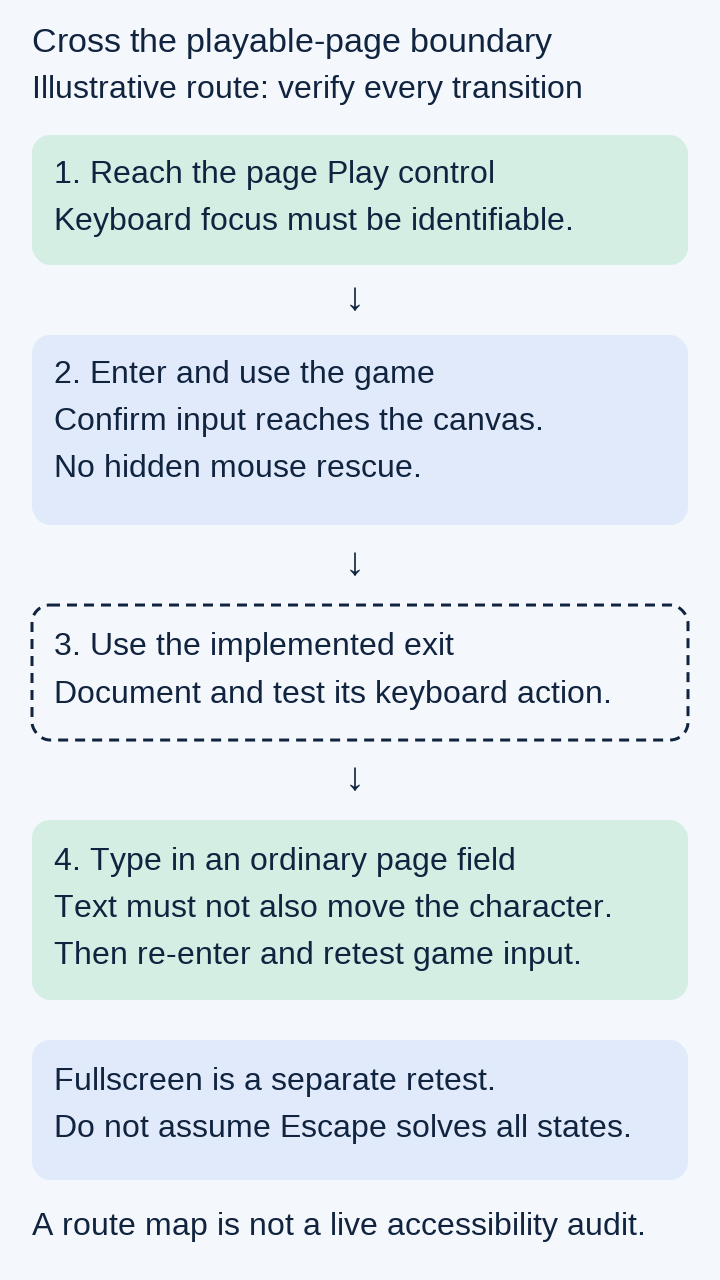
Original boundary map. The exit is a route to implement and verify, not a claim that a particular key works in every browser.
Original visual by the Superdirector editorial team. Creation date not recorded.
Check that page typing does not become game movement
Suppose a fictional landing page places a newsletter field below an embedded game. After leaving the canvas, type a harmless test string into the field without submitting it. Does the field receive the text? Does the game also react to letters used for movement? Does deleting the test string work normally?
This exposes an event-routing issue that a successful game-only playthrough may miss. It also prevents a misleading “fix” that makes the page field work by leaving the game permanently unable to regain input.
For Unity projects, the Web input documentation describes default keyboard capture across the page and the focused-canvas behavior associated with setting WebGLInput.captureAllKeyboardInput to false. That is an engine-specific investigation point, not a universal patch. It does not by itself establish correct focus order, a visible focus indicator, an accessible exit or working behavior in another engine. Make changes in the appropriate project workflow, then rerun both directions of the boundary test.
Do not disable browser protections to manufacture a passing result. Test under the normal supported environment and document unsupported combinations honestly.
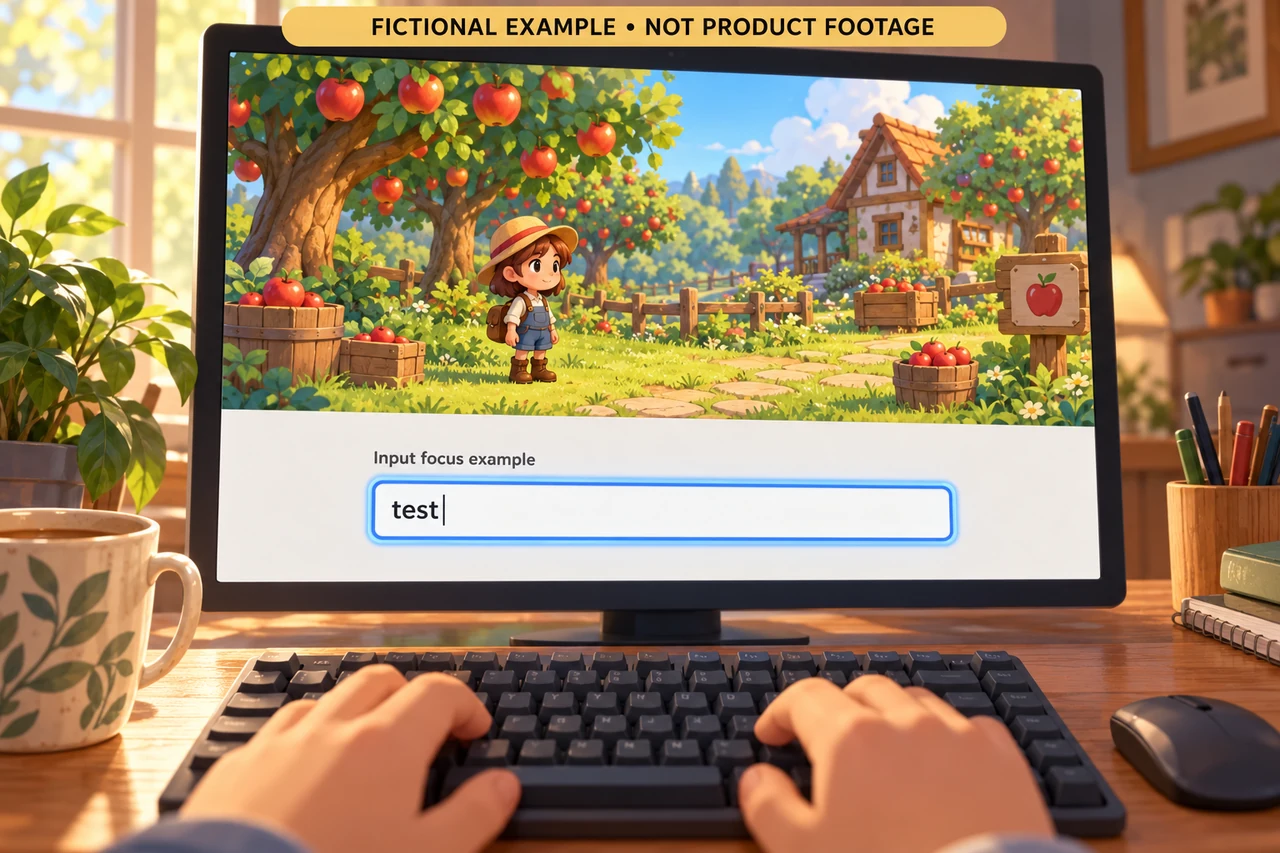
A fictional page-focus example separates typing below a game from moving its character. It is not a keyboard-accessibility test result. Original AI-generated editorial illustration.
Original visual by Original editorial illustration generated with OpenAI’s built-in image tool. Created 2026-10-24.
Retest fullscreen as a separate state
Fullscreen changes are not the same as opening an in-game pause menu. Test entering fullscreen, returning to the ordinary page and finding focus afterward. Then repeat the keyboard exit and re-entry route.
Do not assume Escape simultaneously closes a game menu, exits fullscreen and returns focus to the intended page control. Unity's documentation notes browser-dependent handling of that key and whether the application receives the event. Record what the specific supported browser does instead of publishing a universal instruction from memory.
If focus disappears, identify whether the user can still navigate to a known control. A visible recovery path and a tested instruction are more useful than a vague “press Escape if stuck” caption.
Diagnose nonresponse before naming the defect
A current interactive-fiction troubleshooting conversation distinguishes intended waiting behavior from a reported input problem. A separate creator-and-tester discussion raises browser keyboard-focus concerns. These are specific reported experiences, not proof that your interpreter or host is broken.
When a key appears to do nothing, record the expected state first. Is the game waiting for a particular command? Is a dialog consuming input? Does focus remain on a page control? Does an instruction explain what happens next? Only then investigate event routing or a trapped focus cycle.
A historical itch.io fullscreen report is a useful reminder to include transitions in the test. Its 2023 date means it cannot establish a current platform-wide defect. Avoid turning old support threads into present-tense claims.
Keep the acceptance record small and specific
For each supported environment, retain the page and build versions, entry route, exit route, fullscreen result, field-typing result and unresolved transitions. Attach the uncut recording or written keystroke trace. A successful route in one environment should not silently fill every other row.
Ask intended keyboard users to try the page without coaching the route. Observe where they hesitate, whether they notice the exit instruction and whether recovery works. Distinguish their observed outcomes from your preliminary engineering check. If you revise instructions or event handling, repeat the same boundary tasks and retain both versions.
No live-page test result is reported here, so those outcomes remain unmeasured. The practical next deliverable is a tested journey with named limits, not a blanket keyboard-ready badge.