How-To Guide
Show exactly what a Shopify bundle includes before you promote it
Start a bundle's images from a written contents record, not from a styled photograph. Every included object needs a name and quantity.
Start a bundle's images from a written contents record, not from a styled photograph. Every included object needs a name and quantity. Every choice needs a clear relationship to the selected configuration. Props and separately purchased accessories must sit outside that promise.
This is a visual-content workflow for a fixed bundle or multipack. It does not assume a particular theme automatically displays component information, and it does not provide an untested code fix.
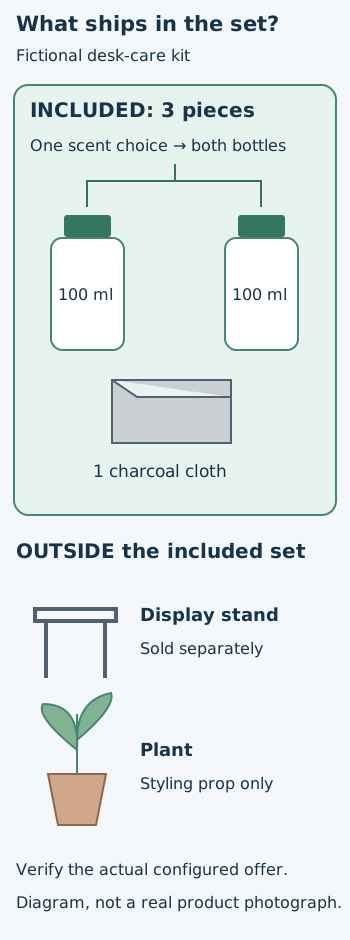
This original contents card is an editorial example, not an image of a real product or evidence of conversion improvement.
 Superdirector
Make it work for your brand
Find it. Remake it. Post it. Superdirector turns the viral formats in your niche into your brand's carousels, X posts and video scripts, and keeps the calendar full.
First distinguish the offer you actually sell
Shopify distinguishes fixed bundles, multipacks and mix-and-match offers. Its first-party Bundles app supports fixed bundles and multipacks; do not plan a build-your-own visual around functionality you have not implemented. Bundle component quantities and variants can be configured in the app. Bundle types and Shopify Bundles documentation.
For this review, freeze one offer revision. Note the component names, quantities, selectable options and exclusions. If those details change during production, the creative needs another check. A product page is not correct merely because it was correct when the designer received the brief.
Build a small contents ledger
Here is an illustrative desk-care kit, not a real product or a claim about a merchant's store:
- Two refill bottles, each 100 ml, with one scent choice applying to both.
- One cleaning cloth, charcoal only.
- A display stand that is available separately, not part of the kit.
- A plant used as a styling prop, never sold with the kit.
Record a reference photograph for each included component and identify who owns changes to the offer. Give the stand and plant their own exclusion entries. That feels overly explicit until a photographer adds the stand to the hero image and someone assumes it ships in the box.
Keep physical piece count separate from component types. This example has three included pieces but only two types of product. “Three essentials” is ambiguous if the photograph also contains a stand. “Two refill bottles and one cloth” answers the purchase question directly.
The ledger is an editorial control, not a replacement for the configured product or fulfillment system. Resolve any disagreement before producing the final imagery.
Design a three-frame image sequence
Frame 1: identify the included set
Show all three included pieces in an uncluttered arrangement. Do not hide the second bottle behind the first if quantity is central to the offer. Use a short contents caption near the objects rather than a small disclaimer at the bottom of an unrelated lifestyle photograph.
This frame should survive a mobile crop. If the edge of the image disappears, the remaining composition should not imply a different count. Keep essential labels away from decorative margins.
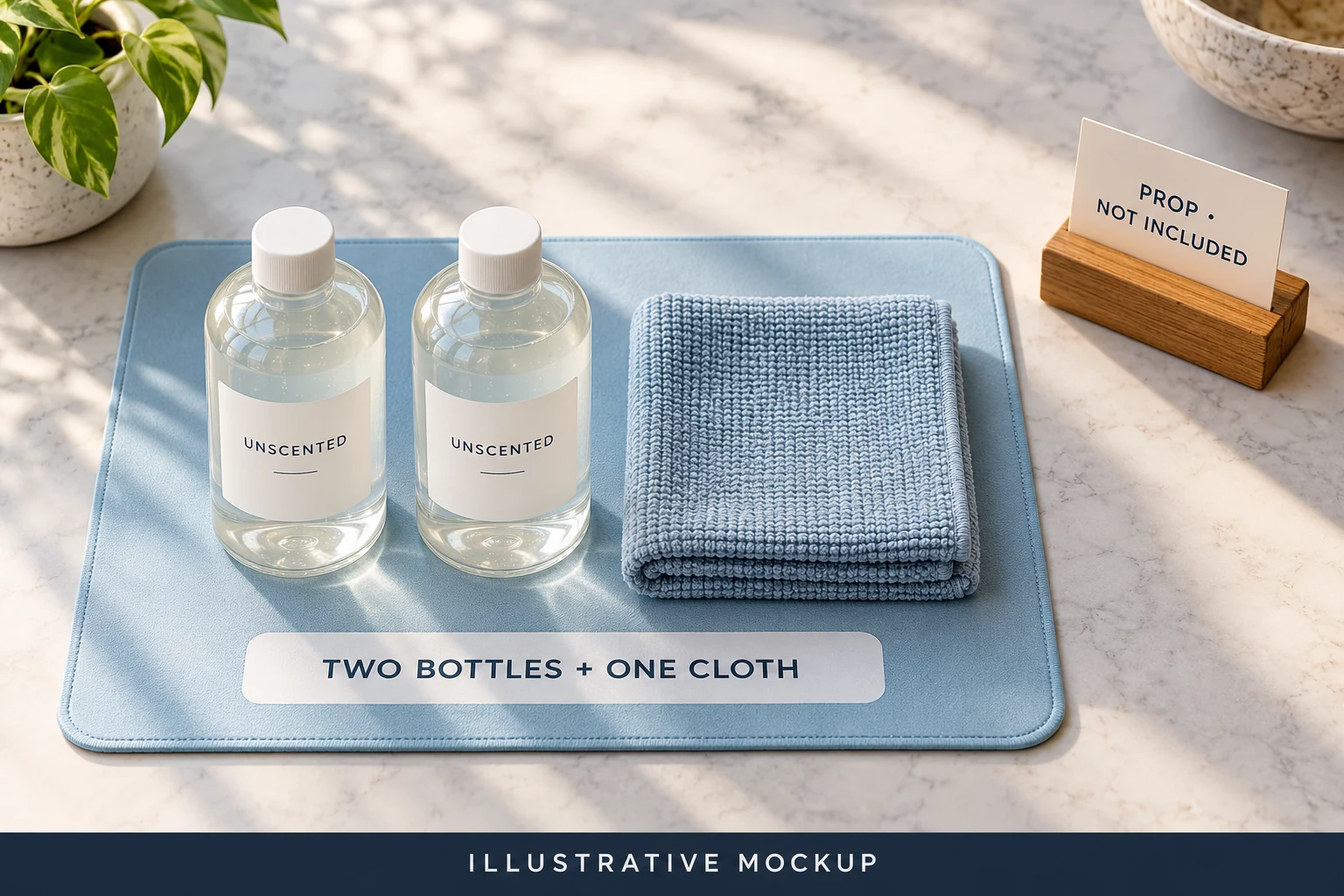
AI-generated illustrative mockup. This fictional bundle contains three pieces but two component types. The separate stand is not included. Real listing media must match the selected scent and verified contents.
Frame 2: explain the selected option
Show what “Citrus” or “Unscented” changes in this illustrative offer. State that the chosen scent applies to both bottles. Do not display one of each in the same configuration unless that is actually selectable.
If you offer separate choices for two components, say so instead. Shopify supports combining matching options so a single selection applies across relevant products, but whether your bundle uses that configuration must be checked in your store. Combined options.
Static images can explain the range of options. They cannot prove the current selected state of an interactive page. Make that state clear in the page's actual option controls and inspect it after each selection.
Frame 3: separate optional accessories and props
A stand may be useful to demonstrate the kit, but give it an unmistakably separate frame or boundary. Label it “Stand sold separately” only if that statement is true for your offer. A plant is different: it is a scene-setting object, not an upsell. Do not group both under “optional extras” if only one can be purchased.
Check the entire path, not just the hero
Shopify's documentation describes bundle information in checkout and orders, including component titles and quantities. That does not establish how your theme presents the product page. Bundle order display.
Compare these surfaces using one deliberately chosen configuration:
- Configured bundle: which components and quantities are actually included?
- Product page: do text, pictures and selected options describe that same configuration?
- Cart and checkout preview: is the offer still identifiable, without implying the separately sold stand is included?
- Permitted order evidence: can fulfillment reconstruct the same set from the received order?
Do not complete a purchase solely to satisfy this checklist without authorization. If you only inspect the page and cart, mark the order and fulfillment checks as pending. Distinguish screenshots of your store from an illustrative mockup.
A useful discrepancy test is to change one permitted component option, such as scent, then return to the default. If the text changes but the picture still implies the previous selection, decide whether to update the media dynamically or make the static image explicitly illustrative. Never hide the mismatch in a general disclaimer.
Avoid the automatic-sync assumption
A Shopify Community merchant asked for component images, titles and quantities on the product detail page and described using the description as a workaround. Later replies proposed different approaches, including disputed code. This is a real problem report, not proof that any suggested snippet works on your theme. Merchant discussion.
If your contents display is manually maintained, give it an owner and a revision check. If it is generated from product data, deliberately change a test configuration and verify the rendered result. Either approach can fail when the offer changes. An app installation is not an acceptance test.
Use a comprehension test before a performance claim
Ask a reviewer unfamiliar with the offer to list what would arrive, how many of each item, what they can choose and what costs extra. Compare that answer with the contents ledger. Record the misunderstanding rather than coaching them through it.
After launch, classify genuine contents-related questions separately from delivery or product-quality questions. Record the number of bundle orders alongside those questions. If you change the creative, keep the offer and observation window explicit; do not attribute every change in conversion to one image.
Finish one exact bundle review before scaling the visual treatment across the catalog. Keep the contents record and discrepancy test with the approved creative, and assess any commercial effect separately.