How-To Guide
Sell SVG cut files with a compatibility claim you can actually support
This guide uses Cricut Design Space as a concrete reference.
“SVG included” names a format. It does not prove that the file imports correctly on every platform, preserves the intended layers or cuts successfully on every machine and material. Build the listing's compatibility statement from the tests you actually performed, and keep the untested combinations visible.
This guide uses Cricut Design Space as a concrete reference. It is not a claim that all cutting software behaves the same way, and the illustrated flower example is not a tested commercial file.
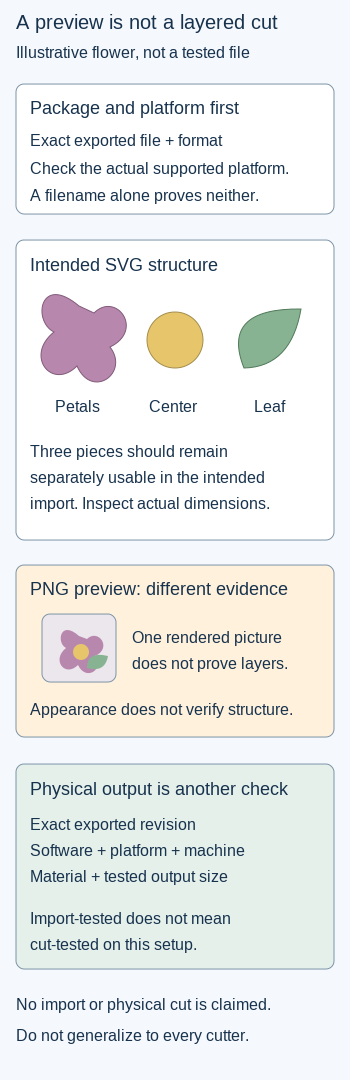
This original diagram is a verification plan, not proof of compatibility for a seller's file.
 Superdirector
Make it work for your brand
Find it. Remake it. Post it. Superdirector turns the viral formats in your niche into your brand's carousels, X posts and video scripts, and keeps the calendar full.
Separate four kinds of evidence
Before writing a compatibility badge, identify what you know:
- Package: the buyer receives the intended files and can identify them.
- Format: the software and platform support that file type.
- Structure: the file's internal contents import as intended.
- Output: the imported design has been cut at the relevant size using a documented setup.
Passing one does not automatically pass the next. A file visible in a folder is not a successful import. A successful import is not a successful cut. A successful cut at one size is not proof that every smaller version preserves delicate parts.
Make those distinctions part of the evidence record before designing the product preview.
Begin with the supported platform, not the icon
Cricut documents SVG and DXF as vector upload formats, but DXF is not supported in Design Space on iOS or Android. Its vector instructions also describe layered designs remaining separable after import. Cricut upload guidance.
That means “SVG and DXF included” needs more explanation than “works on your phone.” Identify the platform actually checked. Do not infer the file's contents from the application icon that a computer displays beside its name; that icon can reflect an association rather than the file's internal structure.
A filename ending in SVG is also not evidence that a raster image has become a vector cut file. Renaming an extension is not a conversion workflow.
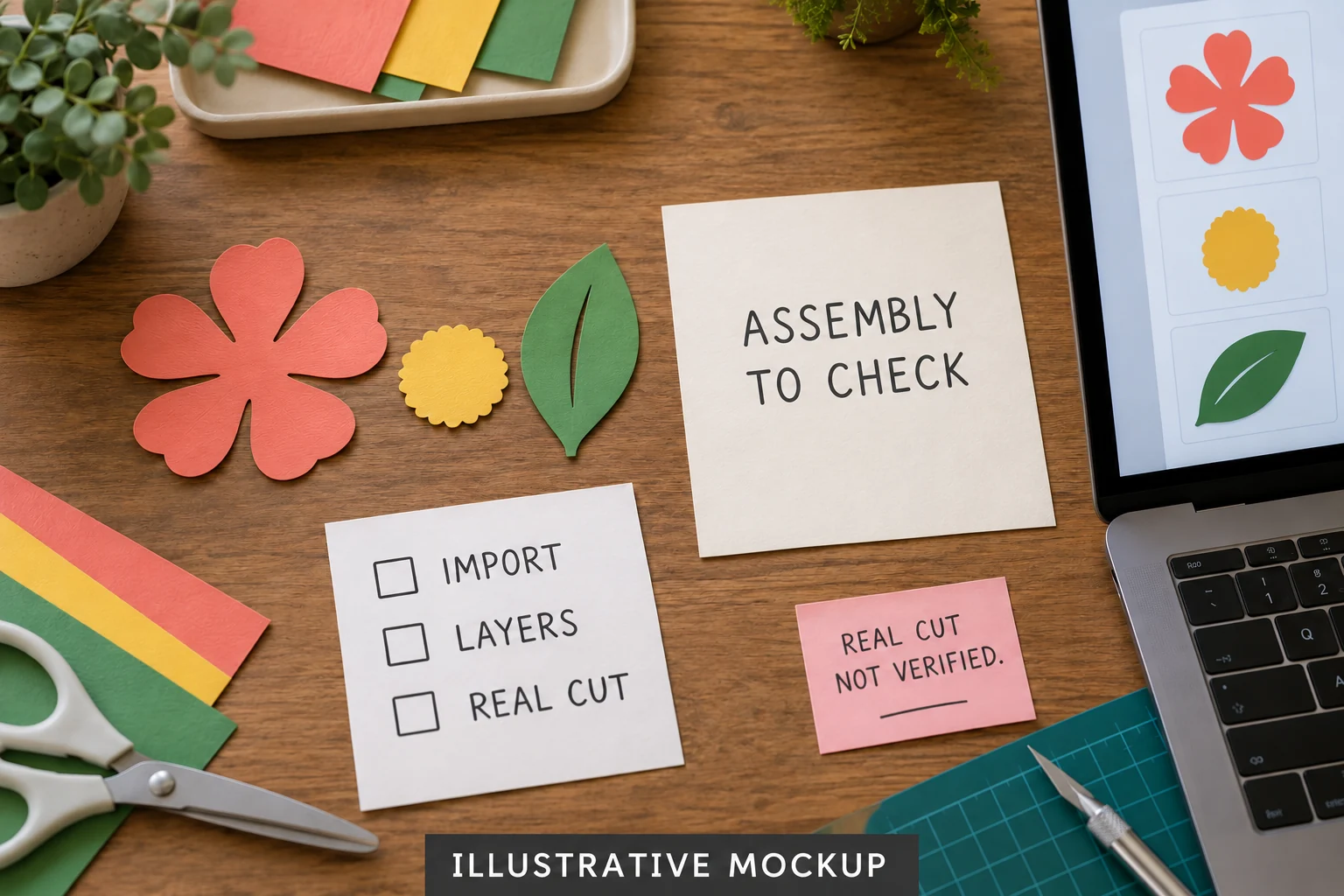
AI-generated illustrative mockup of separate flower parts and a proposed verification checklist. Import, layer structure, assembly and an actual machine cut are different checks; no commercial file or machine was tested.
A worked example: a layered paper flower
Imagine a design supplied as three intended pieces: petals, center and leaf. This is an original teaching example, not a tested download.
The package inventory names each supplied format and explains its purpose. The SVG is intended to preserve separate shapes. If a PNG preview is included, label it as a preview rather than suggesting it is an interchangeable layered cut file.
Cricut’s current upload instructions also limit an SVG to 5,000 paths. Include that specific check when relevant; it is not a universal limit for all software.
After exporting the SVG, import that exact exported file into the target software. Check whether the three pieces appear as intended, whether their dimensions are correct and whether they can be handled separately. Do not test the editable authoring master and assume the exported download is identical.
Capture evidence from that actual import only when you perform it. A schematic layer diagram can explain what to expect, but should not be presented as a screenshot of a successful test.
Inspect internal structure before recommending a fallback
Cricut's unsupported-items guidance identifies issues such as editable text, clipping paths, pattern fills and linked images in vector uploads. It describes converting editable text to shapes and warns that raster alternatives do not preserve the same layered-vector behavior. Unsupported upload contents.
For a lettering design, keep an editable master for your own future work, then prepare the deliverable structure required by the target software. Re-import the exported file and inspect the result. Do not tell a buyer to flatten everything without considering whether the product was sold as a layered design.
If a PNG version supports a different use, name that use separately. A workaround that lets an image appear on screen may still fail the task the buyer purchased it for.
Make one real cut before making a cut-tested claim
When an authorized test is available, record the exact file revision, software version, platform, machine, material and tested output size. Keep the resulting photograph and any observed defects with that record.
Inspect small holes, narrow connections, overlapping shapes and parts that must align. If a decorative element fails at the smallest advertised size, revise the file or narrow the claim. Do not assume the machine operator caused the problem without checking the supplied design.
A desktop import can be useful evidence even when a machine test is unavailable. Label it accurately as import-tested rather than cut-tested. If no real test has occurred, keep the article's example and diagram explicitly illustrative.
Write the claim from the evidence
A precise statement has a smaller scope than “compatible with all cutters.” It identifies the supplied format, the tested application and platform, the tested revision and the kind of test completed. Add any relevant limitation in the same section rather than hiding it in a support document.
For example, a listing could report a verified desktop SVG import and separately state that a mobile DXF route is unsupported. Do not fill in software versions, machine names or test dates until you have the actual record.
Review the claim after any export or structural edit. Changing text to shapes, simplifying paths or reorganizing layers can change the delivered file even when its preview looks similar.
Give support a diagnostic route
When a buyer reports trouble, distinguish missing download, unsupported format/platform, import error and physical cutting result. Ask for the minimum non-sensitive information needed to identify that stage. Do not request credentials or assume a screenshot of an error proves which file revision they used.
A successful support exchange should help locate the mismatch and preserve what was learned for the next revision. It does not prove universal compatibility or a lower failure rate across all buyers.
Create one compatibility record for the exact exported deliverable, then write a listing claim no broader than the import and cutting evidence you have.