How-To Guide
How to check a creator video across every intended crop
Check a finished creator video in each booked placement, record crop and interface coverage, and approve only the creative that keeps the message legible.
By the Superdirector editorial team. Sources reviewed October 28, 2026.
At a glance
How can a team check that a creator asset survives each intended platform crop?
List the exact placements and creative sources, freeze the approved file or pulled Spark post, mark critical elements by timecode, then inspect the selected creative in each current native preview with its final caption, CTA and device or format context. Record Pass, Repair or Unknown per placement; recheck a changed file, post or setup.
- A 9:16 export and a generic safe-zone overlay do not prove a booked placement is legible.
- For Spark Pull, the authorized post and its caption are the selected ad creative; record the post identity.
- A preview is scoped evidence for that setup, not a guarantee of every live impression.
Direct answer
Short answer: list the *actual placements* in the media plan, mark what must remain visible in the final video, and inspect that exact export with the final caption, call to action, format and device previews for every placement. Record a pass, a specific repair, or an unverified placement for each one. A 9:16 file can be technically eligible while its product label, hook or disclosure is cropped or covered by interface elements. TikTok says its in-feed ad safe zone changes with dimensions, caption length and additional formats; Google says video-ad overlays and buttons vary by format, campaign and screen. Neither source supports one universal pixel rectangle for every destination. TikTok's in-feed specifications and Google's vertical-video guidance define the relevant limits.
This is a pre-release review of a finished creator asset, particularly when a brand intends to reuse it as a TikTok in-feed ad and a YouTube Shorts ad. For a pulled Spark Ad, the ad uses the exact authorized TikTok post; a local file preview alone does not prove how that post and its caption will appear in the ad. It is not a guide to choosing which videos to repost, changing captions for audience tone, or filming vertical footage; the existing repurposing guide and mobile shot-list guide cover those earlier decisions. It also does not say that the ad specifications below apply to an organic creator upload. If organic Reels or Shorts, another ad format, or a different market is booked, add that exact surface to the review and obtain its current native preview or placement specification before sign-off. TikTok's Spark creation guide distinguishes pulling an authorized post from pushing a new creative.
Use the crop-review board to map critical frames to placements and the blank CSV to retain the decision. Both are original, empty templates. The conceptual diagram is not a platform-certified safe-zone overlay.
The three ways a vertical export can fail
Crop removes pixels. A player or placement may show only part of the source frame. Google documents an initial ad impression where a 9:16 video is cropped and says that interacting with the YouTube app can compress its video player to as much as a 1:1 shape, cutting the displayed top and bottom. That statement belongs to the YouTube *ad and app-player modes described on that help page*; it should not be paraphrased as “every Shorts viewer sees a square crop.” Google's player illustrations and explanation show why the precise eligible surface matters.
Interface covers pixels that still exist. A caption, handle, action control, ad call to action or other placement element can sit over the video. TikTok's in-feed page explicitly says safe-zone size depends on caption length and additional formats, and offers separate standard and anchor files, including LTR and RTL versions. Google's ad guidance likewise says overlays, buttons and calls to action move with format, campaign and screen. An editor's generic 9:16 grid is a useful early warning; it is not proof that the *booked* ad renders clearly. TikTok; Google.
The delivery setup changes the presentation. An otherwise clean file can look different once the final caption, anchor, CTA, aspect ratio or eligible inventory is set. TikTok's Ad Preview Tool asks for creative settings including text, CTA, identity and language and lets the reviewer choose phone models. Google's Shorts ad preview guide lets a Video campaign reviewer inspect the selected Shorts format and other eligible formats or devices. An approval based on an earlier setup is an approval of a different presentation.
When enlarged, scroll horizontally to read the diagram.
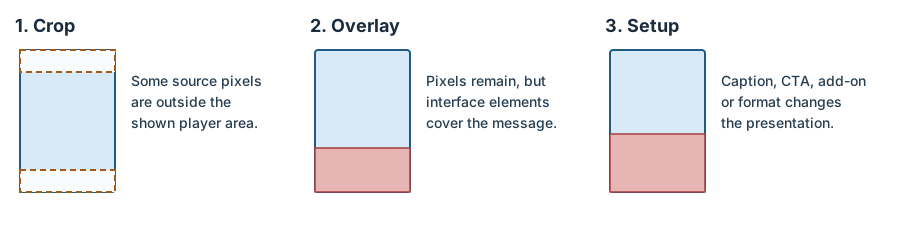
Original crop-review diagram. These are failure types, not platform-certified safe-zone dimensions.
Original visual by Superdirector editorial team. Creation date not recorded.
Build a placement list before opening an editor
Write one row for each booked surface, not one row for “TikTok” and another for “YouTube.” At minimum record platform, ad or organic use, exact format and placement, campaign type or delivery configuration, region and language, displayed caption, CTA, anchor or add-on, expected device, owner and due date. If a campaign allows more than one eligible YouTube format, include each relevant format rather than assuming that a Shorts preview covers all of them. Google's Shorts preview instructions explicitly provide a format selector and device icons for this reason. Google Ads Help.
For TikTok in-feed, distinguish Spark from Non-Spark before copying a specification. TikTok lists a recommended vertical 9:16 dimension of at least 540 × 960 px under Non-Spark Ads; its Spark pull section is separate and draws the caption from the organic video. Do not present the Non-Spark number as a specification for every creator post or ad type. For Spark Pull, record the authorized post ID and URL and verify that it is the creative actually selected in Ads Manager; keep its link to the approved source file if one exists. Record whether an anchor is used and choose TikTok's matching, current safe-zone file for the region and format. TikTok's in-feed specifications and Spark creation guide support the separate source paths.
For YouTube Shorts ads, Google recommends vertical 9:16 assets in Video campaigns and provides a preview gallery plus a View on YouTube option. Its guidance says horizontal and square assets can also be supported, so aspect-ratio eligibility alone is not a visual pass. It also says a preview link must be regenerated after edits, and live Shorts previews are currently unavailable for Demand Gen and Performance Max campaigns. If the actual campaign lacks the needed live preview, mark the review as incomplete; don't relabel an unrelated example as the final ad. Google's Shorts preview guide.
Mark the non-negotiable content in the selected creative
Before previewing, identify the approved source file and version, not merely the working project. Record its dimensions, duration, export name or checksum, and any burned-in captions or graphic layers. If the booked placement pulls an existing Spark post, also record the exact authorized post selected for that ad; the post is the ad creative being reviewed. Then write the critical elements by timecode: the hook, the product or demonstration detail, a price or factual qualifier if one is actually in the approved creative, any brief-required on-screen disclosure, and the final action the viewer must understand. These are editorial requirements, not claims that every video needs every item.
Classify each element by whether it must be read, recognized, or merely provides atmosphere. A decorative background can disappear without changing the message; the word that qualifies a claim cannot. This step turns “looks fine to me” into a falsifiable question: *Can a viewer see and read this exact element in the booked placement at the time it appears?* Include not just the opening frame but every frame in which meaning depends on a position near the edges. The blank CSV has a row per critical element and placement, so a later editor can see the actual reason for a repair.
Preview the same setup that will run
Preview the actual booked creative where the platform permits: upload the approved file for a Non-Spark ad, or select the exact authorized post for a pulled Spark Ad. TikTok's Spark creation guide describes the separate Pull and Push paths, and its in-feed specification says a pulled post retains the organic caption. An uploaded simulation in the standalone Ad Preview Tool can help inspect a layout but does not establish what the selected Spark post and caption will render. In TikTok Ads Manager, the ad-creation preview can be scrubbed to specific frames; TikTok says it is not device-specific and live appearance can differ slightly. Its separate Ad Preview Tool can test different placements and phone models after the reviewer enters the relevant creative settings. Use these views for their declared scope rather than treating one generic mobile mock-up as final proof. TikTok's Spark creation guide; in-feed specifications; ad-creation preview; Ad Preview Tool.
In a Google Ads Video campaign with Shorts selected, open View preview gallery, select the Shorts format and relevant devices, and use View on YouTube for the individual ad preview. Review any other eligible formats named in the actual media plan. If an editor changes the video or ad setup afterward, generate a new share link; Google's documentation says old preview links do not update. Google's Shorts preview instructions.
Watch the whole video once at normal pace. Then pause at every marked timecode. Check whether the element is fully present, covered by UI, too small to read, visually competing with the CTA, or visible only in one state of the player. Save the preview identity and a dated screenshot or note for each relevant issue. Keep the screenshot with the team that owns the campaign; the blank public worksheet should never contain a private preview URL or customer asset. A platform preview is strong evidence for the reviewed setup, not a guarantee of the live impression: TikTok and Google both disclose preview-versus-delivery limits.
Decide pass, repair, or unknown per placement
Use three decisions, with a reason:
- Pass: every marked critical element remains legible in the checked placement and setup, and the evidence identifies the exact export version and preview conditions.
- Repair: a critical element is cut, covered or unreadable. State the frame and reason, move or resize the element, retime a caption, or create a placement-specific export. Recheck the *new* file or authorized post in every placement it is supposed to serve.
- Unknown: the correct preview, current specification, or final setup is unavailable. Keep the placement open. “Probably safe because it is 9:16” is not a pass.
Do not force one master file to cover an incompatible set of placements. A shared edit is efficient only if it passes each booked context. A small variant may preserve the same creative idea while moving the product label or subtitle away from a covered region. The output is an asset-readiness decision; it predicts neither reach nor sales.
Consider a fictional Non-Spark exercise, not an observed campaign: an export called creator-cut-v3.mp4 places its only product-name label near the lower edge at 00:07. If a reviewer sees the label obscured in the actual TikTok in-feed preview with the booked caption and CTA, the TikTok row becomes *Repair*, even if the source file is 9:16. The editor moves the label in a new v4 export. The reviewer then checks v4 in both the TikTok Non-Spark setup and the selected YouTube Shorts ad preview. A prior v3 screenshot cannot sign off v4; the evidence follows the file version. If the booked TikTok use is instead Spark Pull, the changed creative needs its own selected and authorized post before that ad can be rechecked. No account, creator, preview result or campaign outcome is asserted by this example.
The crop-review board includes a conceptual source-frame diagram, a placement register and a critical-frame decision table. Its CSV companion makes the audit portable. Start with one blank row for every critical element × placement combination. Keep the actual platform screenshots, private URLs and approvals in your owned campaign record.
Source and scope note
Official TikTok for Business and Google/YouTube Help pages were checked on 2026-10-28. Their guidance supports a repeatable ad-placement review, not a claim about an actual Superdirector customer's export or an all-platform safe-zone formula. The article uses no third-party performance statistic, account screenshot, inferred ranking factor or measured outcome. Platform specifications and previews can change; repeat the check for the campaign and creative actually being released.