How-To Guide
Prove one reading task with VoiceOver before filming an accessibility claim
A large, clear screenshot cannot show whether someone can find a reading control by speech, activate it and recover their place after the screen changes.
A large, clear screenshot cannot show whether someone can find a reading control by speech, activate it and recover their place after the screen changes. Before promoting an accessible reading experience, make a task recording that preserves those decisions. The useful artifact is a spoken-control and focus ledger, not a badge added in the video editor.
Start with one ordinary job in the actual build, such as opening a saved passage, starting playback and pausing it. Use an original sample passage and a demonstration account. This guide proposes a test and filming method; no app, participant session or accessibility result has been tested here.
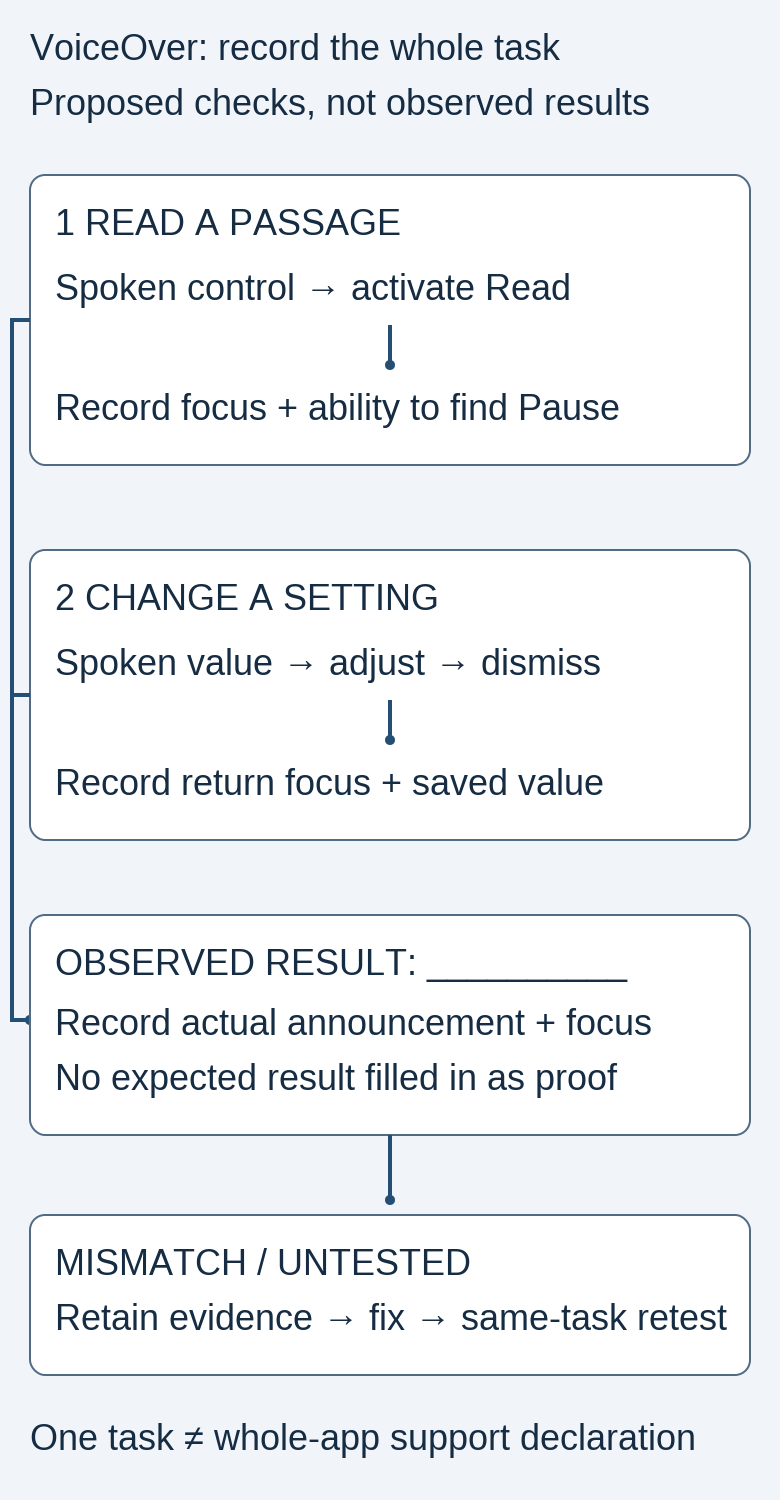
This diagram is a test plan. Its empty result fields do not represent a completed accessibility session.
 Superdirector
Make it work for your brand
Find it. Remake it. Post it. Superdirector turns the viral formats in your niche into your brand's carousels, X posts and video scripts, and keeps the calendar full.
Define the task before choosing the claim
Write the starting state, intended action and observable finish. “The interface is accessible” is too broad for a single recording. “In this tested build, the reader can open this sample passage, start it and find Pause using VoiceOver” is narrower, but still needs actual evidence.
Apple's VoiceOver evaluation criteria cover understandable labels and control states, logical navigation, appropriate focus after changes and completion of common tasks without sighted assistance. One successful scene does not establish that the whole app satisfies those criteria.
Keep your launch caption separate from any App Store accessibility declaration. Review all relevant common tasks and supported devices before making a broad support statement. Do not extrapolate from a rehearsed happy path.
Record the spoken path alongside the visible path
For each meaningful step, retain the control the tester intended to reach, what was spoken, the action taken, the resulting focus and the resulting product state. Leave observations blank until the test happens. Do not fill a missing announcement with what the interface designer intended it to say.
A useful first scene uses a short original passage: “The blue notebook is beside the cup.” Start outside the passage, navigate to it using VoiceOver, then activate the real reading control. Record whether the next necessary control can be found. If playback starts but focus moves somewhere confusing, that is part of the result, not footage to remove.
A second scene answers a different question: can the reader change a supported reading setting and return to the passage? Record the actual setting value, adjustment, dismissal route and return position. If the app has no such setting, choose a real task instead. A polished imaginary speed slider supplies no evidence.
Use inspection to find problems, not to replace the task
Apple's Accessibility Inspector guide describes inspecting element properties and actions, following accessibility navigation order and hearing an element's spoken description. Use that information to locate a missing or misleading control description before recording.
Then test the actual task on the intended device. Apple's testing guidance recommends building a task/device matrix and completing tasks with the assistive technology being tested. Its VoiceOver setup calls for a physical device rather than Simulator. An inspector preflight and a completed device task are different receipts.
Avoid making the tester memorize a founder's route. Give the task in ordinary language, retain where they hesitate and ask what they expected. A sighted developer's self-check can identify defects, but it does not establish that experienced VoiceOver users find the interaction understandable.
Keep a surprising focus change in context
One VoiceOver user and developer described focus moving during audio startup. Later replies claimed a newer OS resolved the issue. The report and proposed explanation are unverified; they are not evidence that your app has the same defect or that a particular workaround is required.
A separate developer discussion asks how to test navigation and friction that a sighted tester might miss. These are useful reasons to inspect the full task, not measurements of demand or proof that a specific testing service works.
When your own test fails, record the exact build, device, OS, action and observed focus. Give the developer a reproducible case without assigning a cause prematurely. Repeat that same task against the changed candidate. A corrected label in source code does not prove the running interaction has been repaired.
Original AI-generated editorial illustration. A spoken reading task needs interaction and listening evidence; a static picture cannot establish VoiceOver support. This is not a product capture, customer scene or completed test.
Publish only the scope the evidence supports
Retain the continuous task recording separately from the launch edit. If you shorten a wait or omit setup, disclose that at the cut. Keep the spoken information audible and provide an accurate transcript or captions for the demonstration. Do not substitute narrated descriptions for missing product announcements while implying they came from VoiceOver.
Use the blank task ledger for observations, unresolved failures, reviewer feedback and exact-candidate retests. The final public claim should identify the tested task rather than promise universal accessibility.
The linked operator discussions are anecdotal. They do not establish the behavior of your app. Validate the stated task on the intended device, and do not turn a narrow result into an app-wide accessibility claim.