How-To Guide
Keep product photos matched to the right SKU after a revision
A new photograph in the media library does not prove that buyers see it.
By the Superdirector editorial team.
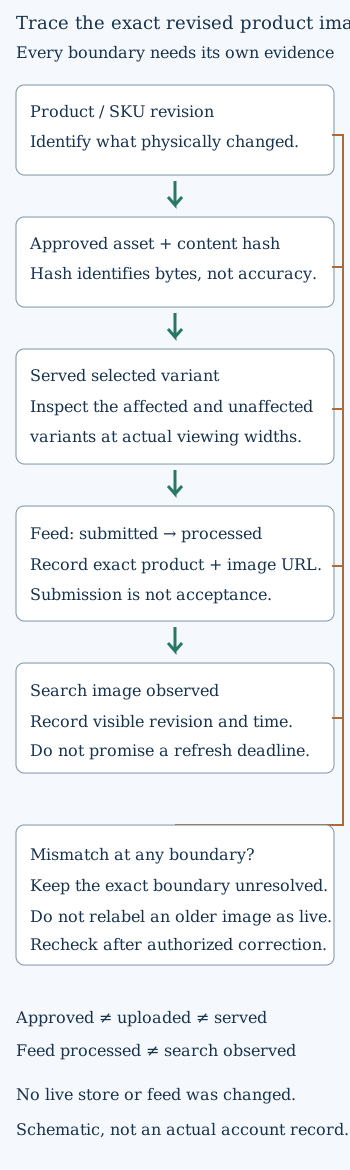
This diagram is an editorial explanation, not a compliant product-feed hero image or evidence of completed indexing.
 Superdirector
Make it work for your brand
Find it. Remake it. Post it. Superdirector turns the viral formats in your niche into your brand's carousels, X posts and video scripts, and keeps the calendar full.
A new photograph in the media library does not prove that buyers see it. The selected variant may still point to an older image, a feed may reference another file, and a search surface may display a previously fetched version. Treat these as separate observations rather than calling the revision complete after upload.
A shot-to-SKU change log connects the physical product revision, approved creative and each destination where it should appear. For a small seller working with a photographer or editor, this record can be compact. Its value comes from precise identifiers and evidence, not a large spreadsheet.
This guide proposes that workflow. No store, feed, deployment or indexing request was changed for this article. References were checked on October 24, 2026.
Start with the product change, not the filename
Record what changed in the item being sold: packaging, color, included component, finish or another visible feature. Identify the SKU and variant affected. Do not use a generic product title when several variants share it.
In an illustrative example, the blue version receives revised packaging while the green version does not. The production request should say which version needs new photography and which existing images remain valid. “Replace the product image” is too ambiguous for that handoff.
Preserve the earlier asset and its relationship to the old product revision. A reversible archive helps explain what was previously approved without encouraging reuse of an obsolete image for current stock.
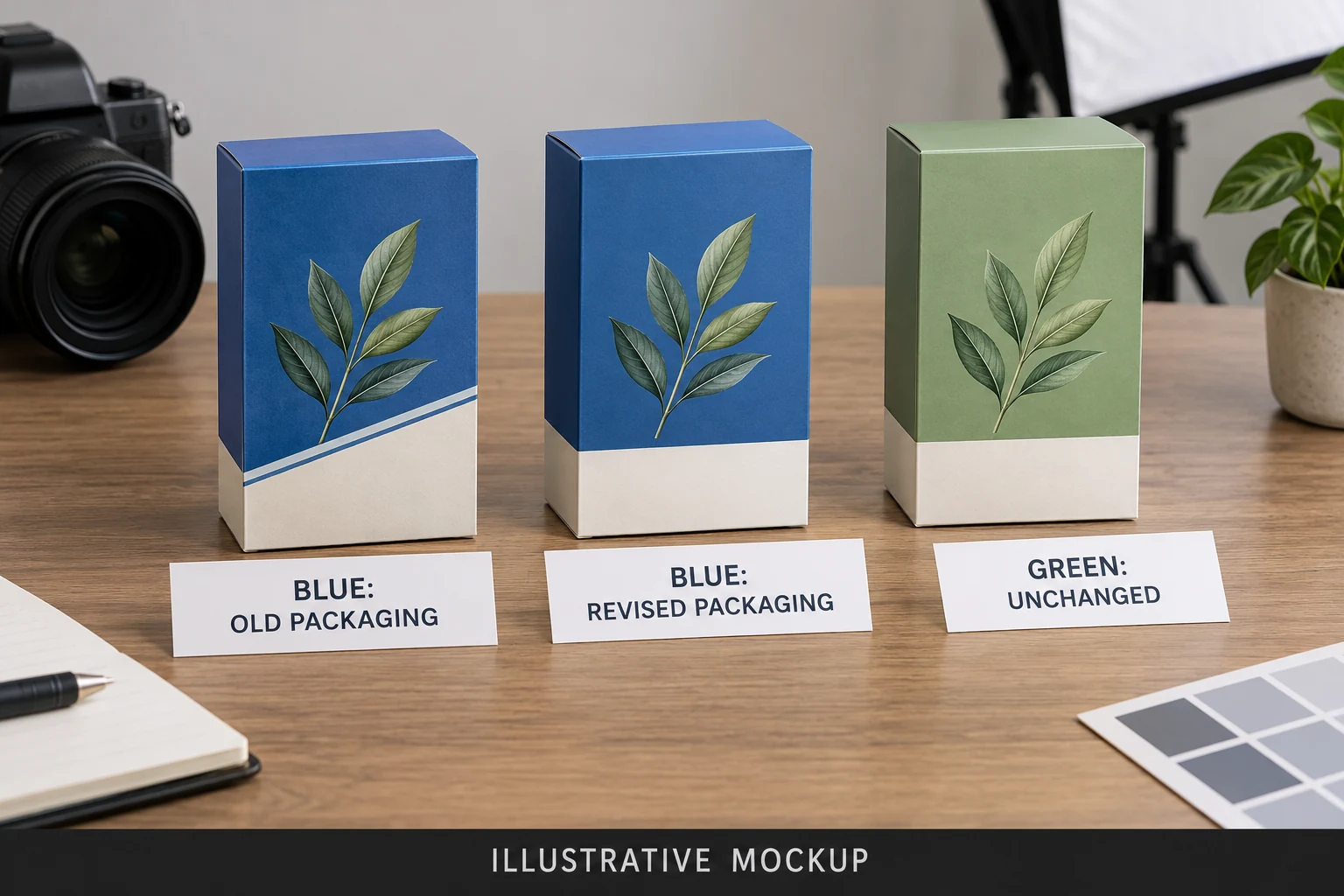
AI-generated illustrative mockup. This fictional revision changes one variant’s media requirement. Asset identity, selected-variant behavior, storefront display and search imagery still need separate checks.
Give the asset its own identity
Assign an asset identifier, revision, capture date and content hash or equivalent reliable fingerprint. Record the person responsible for factual approval and the destinations approved for that version.
A filename alone can be overwritten or reused. A content hash helps distinguish file contents, but it does not tell you whether the picture accurately represents the product. Keep factual review and file identity as separate checks.
The same original photograph may produce several crops. Record those as related derivatives rather than pretending they are identical. A square crop can remove a packaging label that remains visible in the original, which may matter to the product claim.
Respect the destination's actual media model
Shopify's variant-image documentation describes one assigned image per variant in that workflow, with additional images available through the product gallery. Videos and 3D models are not assigned as variant media through that documented mechanism. Uploading a video therefore does not establish a variant-specific video experience.
Google Merchant Center's image-link guidance separates the main product image from additional views, requires an accurate product representation and restricts promotional overlays on the main image. It also advises stable URLs rather than changing parameters on every feed submission.
These requirements serve different destinations. A helpful editorial comparison graphic is not automatically suitable as the main shopping image. Keep the clean product asset separate from annotated review or tutorial graphics.
Trace the approved image through the storefront
After an authorized owner applies a revision, inspect the actual product page. Select the affected variant and record the image that appears, the page URL and the observation time. Compare the visible product features with the approved revision, not just the filename shown in an admin screen.
Check the unaffected variant too. A shared-media change can accidentally replace an image elsewhere. Do not declare a successful blue-variant correction if the green selection now shows blue packaging.
If desktop and mobile layouts behave differently, record both. A correct desktop gallery is not proof that the mobile selection exposes the same relevant image. This article describes the test to perform; it does not claim that a merchant page has passed it.
Keep feed evidence separate from page evidence
The feed record should identify the exact product and image URL submitted. Then record processing or diagnostic results through authorized access. A saved feed file is prepared evidence, not proof of platform acceptance.
If the product page shows version B while a search surface still shows version A, preserve both observations with their times. Do not silently relabel the old search view as updated because the storefront changed.
Avoid promising a fixed refresh time. A provider's crawl or processing guidance is not a receipt that the particular image has been fetched and displayed. Likewise, repeatedly changing image URLs to force attention can create unnecessary churn rather than a trustworthy revision history.
Use a small, actionable change log
For each revision, keep the product identifier, changed feature, asset identifier, approval record, intended destinations and observations. Add a next action only where a state remains unresolved.
An illustrative row might say that the blue packaging asset is approved, the storefront selection has been checked and the search-image observation is still pending. That is more useful than a single “done” checkbox because it shows which claim can already be supported.
Do not store credentials, customer details or private access links in the log. The evidence needed here is product and asset custody, not account secrets. A screenshot should be redacted if it contains unrelated sensitive information.
Make revisions understandable to the creator
Give the photographer or editor a before-and-after change description and the exact SKU scope. Ask them to preserve angles that allow comparison where possible, while still following the product's current presentation requirements.
If only packaging changed, do not quietly alter the depicted product color during retouching. If a component is no longer included, remove it from the actual contents demonstration and update the associated description. The task is to represent the revised offer, not merely produce a more attractive image.
When an asset is rejected, name the mismatch: wrong variant, obsolete packaging, unsupported overlay or missing factual approval. That produces a specific correction rather than another vague creative round.
Close the loop with observed destinations
A revision is complete only to the extent its required destinations have been checked. Report approved, uploaded, served, feed-processed and search-observed states separately. Keep an unresolved external refresh visible rather than claiming it is fixed.
Trace one real revised SKU through its approved asset and served variant view, then record the remaining feed and search-destination checks separately.