How-To Guide
Film a calendar time-zone change without accidentally rescheduling the meeting
A meeting can appear at a different local hour without being moved.
A meeting can appear at a different local hour without being moved. A calendar demonstration becomes misleading when it treats the event’s scheduled time, the device’s zone and the calendar’s display zone as one setting.
Before filming a travel or remote-work feature, label those three states and use a synthetic appointment. Do not change a real client meeting just to create a convincing demonstration. This workflow is a proposed test, not proof that your calendar app handles every time-zone case correctly.
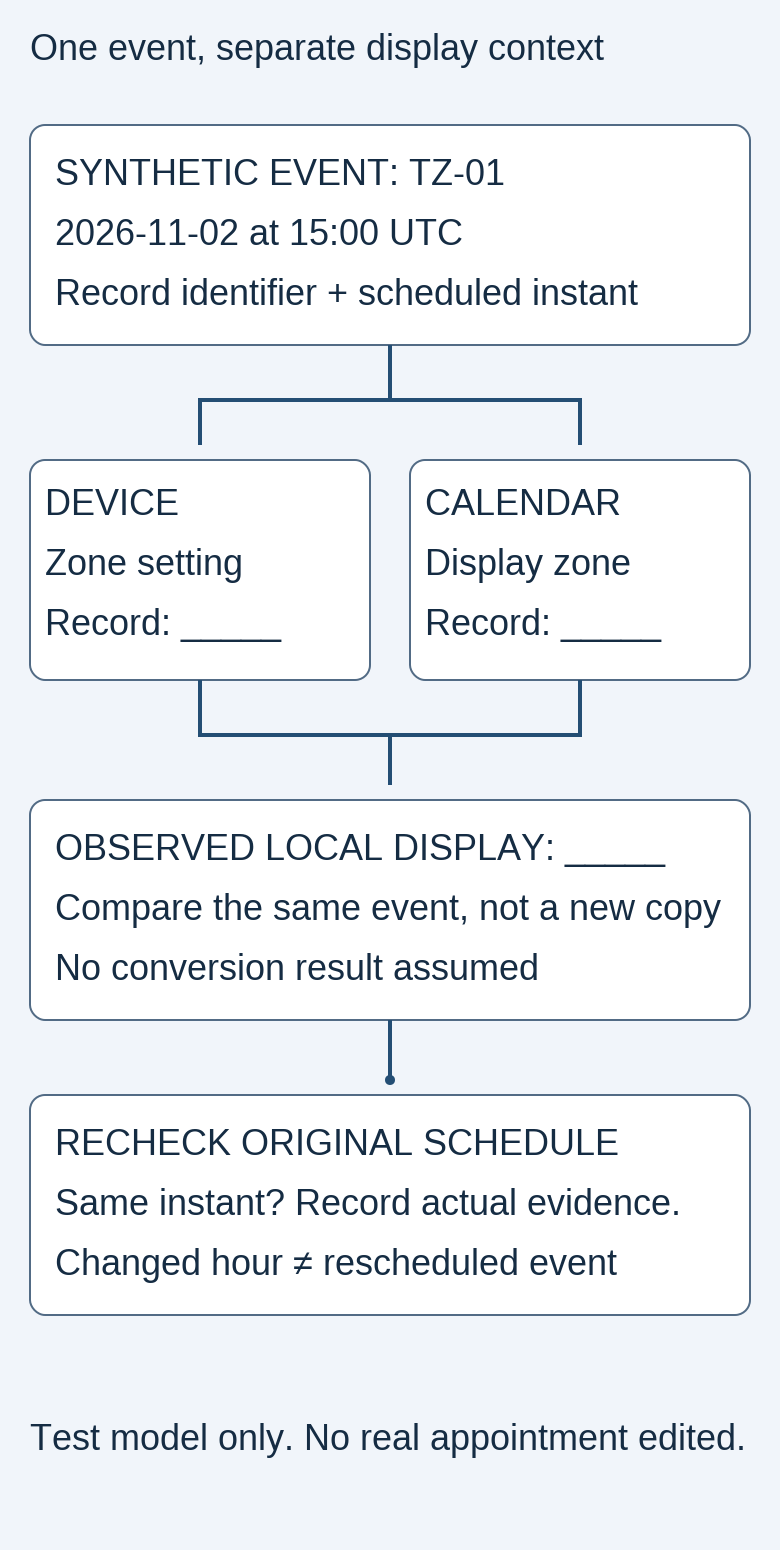
An explanatory test model, not a screenshot or a claim about a particular app’s implementation.
 Superdirector
Make it work for your brand
Find it. Remake it. Post it. Superdirector turns the viral formats in your niche into your brand's carousels, X posts and video scripts, and keeps the calendar full.
Name the three fields
The event time zone is part of the appointment’s scheduling information. The device time zone describes the device context. The calendar display zone determines how that application presents the time. Your app may expose different controls, so verify its actual model rather than copying a competitor’s settings labels.
Apple’s iPhone guide distinguishes changing an event’s time zone from Time Zone Override, which changes the zone shown in Calendar. It describes the override under Settings → Apps → Calendar → Time Zone Override. This is Apple Calendar behavior, not a guarantee about a third-party calendar. Apple calendar time-zone guide
Google Calendar separately documents a Use device time zone setting. Its guide says invitees see events in their own local zones and notes that changes to regional time-zone rules can affect older event interpretations. Google Calendar time-zone guide
The sources explain why a test needs explicit context. They do not diagnose an unexplained customer appointment or prove how your implementation stores time.
Build one dated synthetic appointment
Use a time-zone demonstration worksheet. Record a calendar item with a harmless title, a specific date and named time zone. Save its identifier or another safe way to establish that you are comparing the same item across views.
Avoid labels such as “always three hours ahead” without a date and verified conversion. Seasonal changes and regional rules can make a familiar shortcut wrong. If the date or source zone is missing, the demonstration is not ready for a numerical before-and-after caption.
Write the expected result before changing anything: which display should change, which scheduling fields should remain unchanged, and how you will confirm both. This prevents an attractive final screen from becoming the definition of success after the fact.
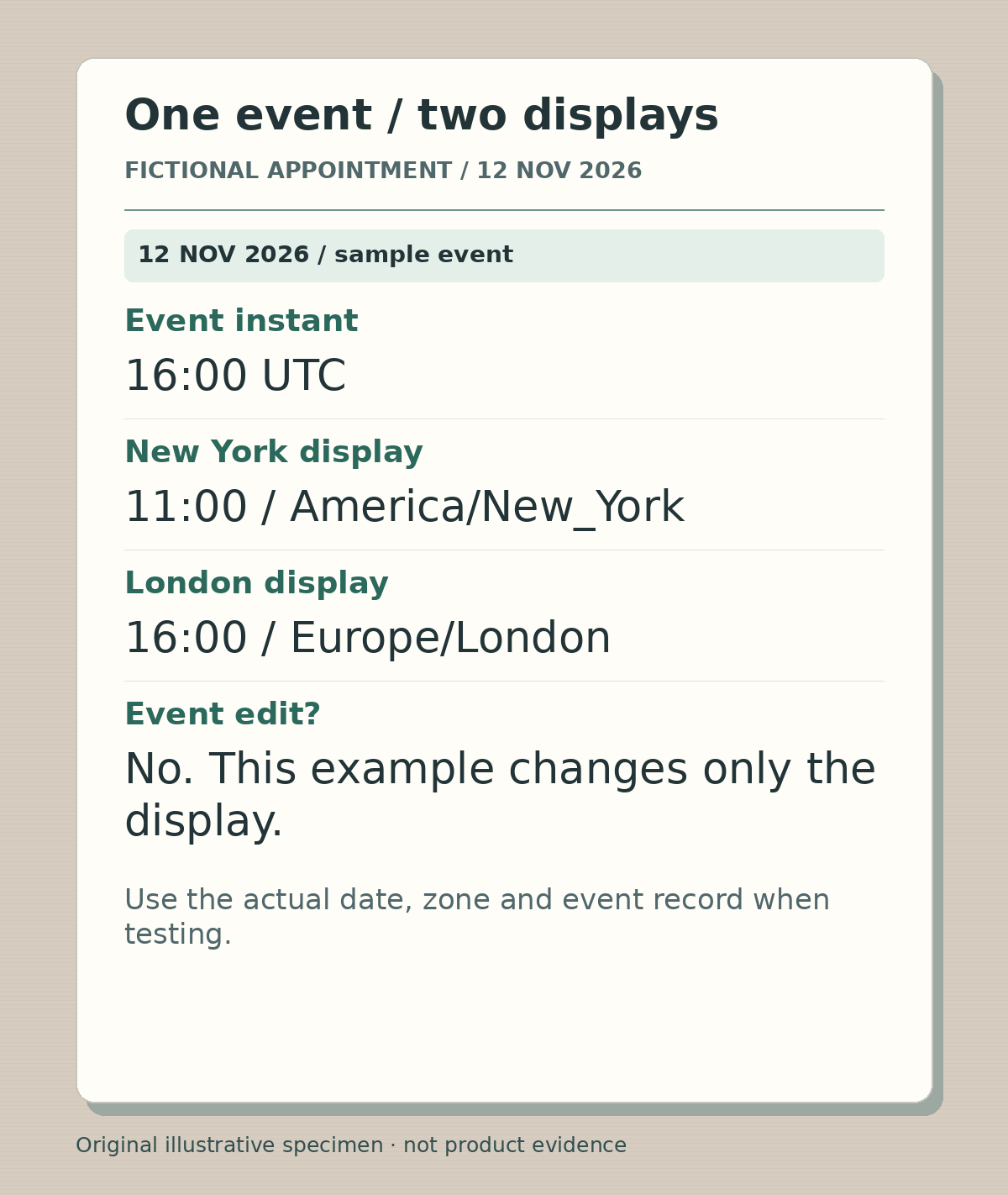
Original fictional appointment specimen: on 12 November 2026, 16:00 UTC is 11:00 in New York and 16:00 in London. The example changes the display, not the scheduled event; it is not a tested calendar screenshot.
Separate a view conversion from an event edit
Capture the initial calendar view and the event details. Record device and display settings alongside the event’s dated scheduling information.
Then change only the display-related setting covered by the approved test. Return to the same appointment and capture the new view. Open its details again and compare the scheduling fields with the baseline. If you edited the event itself, label that as a different test rather than calling it a display-only transition.
For an illustrative remote-work scenario, the organizer wants to inspect a client meeting in the client’s zone while keeping the actual appointment unchanged. A successful proof would show both the different presentation and the unchanged scheduling record. That is an intended result, not an assertion that an untested app already does it.
Check more than the main calendar grid
A person may rely on the agenda, event details, a widget or a reminder. Record which surfaces your demonstration actually covers. If the main grid changes but a secondary surface has not been checked, leave that check open rather than presenting the entire experience as verified.
Where an authorized test invitee is available, compare the same synthetic appointment from their perspective. Do not send test invitations to a real client without permission. If no second account is available, say that invitee behavior is untested.
Treat all-day items, recurring events and travel segments as separate cases if they matter to your app’s promise. One dated timed appointment is a useful first proof, not blanket coverage of every calendar object. Likewise, a manually changed display setting does not demonstrate automatic behavior after physical travel.
Do not turn a forum complaint into your diagnosis
A public Mac calendar discussion describes the system clock and calendar display differing after travel. It is adjacent evidence for user confusion, not proof of an iOS defect or a failure in your product. Its displayed age conflicts with search metadata, so a precise occurrence date is not established here.
Use the concern to improve the test questions: which clock changed, which view did the person read, and what did the appointment details show? Avoid confidently prescribing an event edit before answering those questions.
Finish with a bounded demonstration
The finished packet should contain the dated appointment baseline, settings before and after, each observed surface, unchanged or changed scheduling fields, and the exact claim supported by the recording. If a mismatch remains, preserve it with the reproduction steps and assign the next investigation.
A caption might explain that this particular display-zone change was tested on a named build and device. It should not promise that nobody will ever miss a meeting. After an approved release, collect real task feedback separately from views or clicks on the tutorial. Understanding the difference between display and schedule is the useful outcome; a smooth animation is not enough.