How-To Guide
Check device eligibility before asking people to install your app
An install campaign needs evidence for the one it promises.
By the Superdirector editorial team.
“Built for iPhone,” “available on this device” and “the advertised task works here” are different statements. An install campaign needs evidence for the one it promises. A screenshot, an Xcode destination setting or a successful launch on one phone cannot establish all three.
Run three checks before a public install call to action: whether the app is actually available in the storefront, whether the OS and hardware qualify, and whether the demonstrated task can be completed. This is a proposed launch checklist. It says nothing about whether your app supports any particular device.
Separate the audience from the available product
Start with the intended audience and the task the creative shows. A utility video might show someone capturing an image and getting an output. Write down the exact feature you promise, the app version it depends on and any access tier it requires. If your evidence only shows that the app opens, do not caption it “works on your device.”
Next, list the device families and storefronts the campaign could reach, and keep the devices you want to target apart from the ones where the app is actually available. If the app is prerelease, record that the current build can be tested but you have not yet verified public availability. A beta installation does not show that a public install destination is ready.
One developer's iPad-layout question shows the gap: the author said iPhone was the only supported destination but described an iPad review problem. It is a single self-reported case. It does not verify the review outcome or diagnose your app.
Gate one: inspect actual availability
Record the app's current identity, release status, relevant storefront and compatibility information. When the public version is available, check the actual listing and the destination the campaign will link to. If it is not available, mark availability unknown; do not turn planned configuration into a live claim.
Apple's compatible-device guidance explicitly warns that removing a device from Xcode's supported destinations may not prevent availability there. An iPhone app without iPhone-only capability dependencies can still be downloadable on iPad in compatibility mode.
That cuts both ways. Do not announce that tablet visitors are excluded just because the project has no iPad destination. Nor should you advertise a native tablet experience just because an iPhone app can run there. Name the mode you have verified.
Gate two: record real requirements
Take the minimum OS version and the genuine hardware requirements from the current product configuration and documentation, and keep them separate from the devices the marketing team prefers to target. Check whether the advertised feature needs hardware that is absent or optional on some otherwise eligible devices.
Apple says hardware capability restrictions should reflect genuine dependencies, not distribution preferences. So do not add a false capability requirement to shut out an audience. This article asks you to inspect the product and clarify its requirements, not to change its configuration without authorization.
If your app is a camera utility, ask whether the promised capture works on the specific device and mode, and what the app does when required hardware is missing. A polished screenshot cannot answer that. Write down unsupported and unknown conditions in plain language before you ask a visitor to spend time on setup.
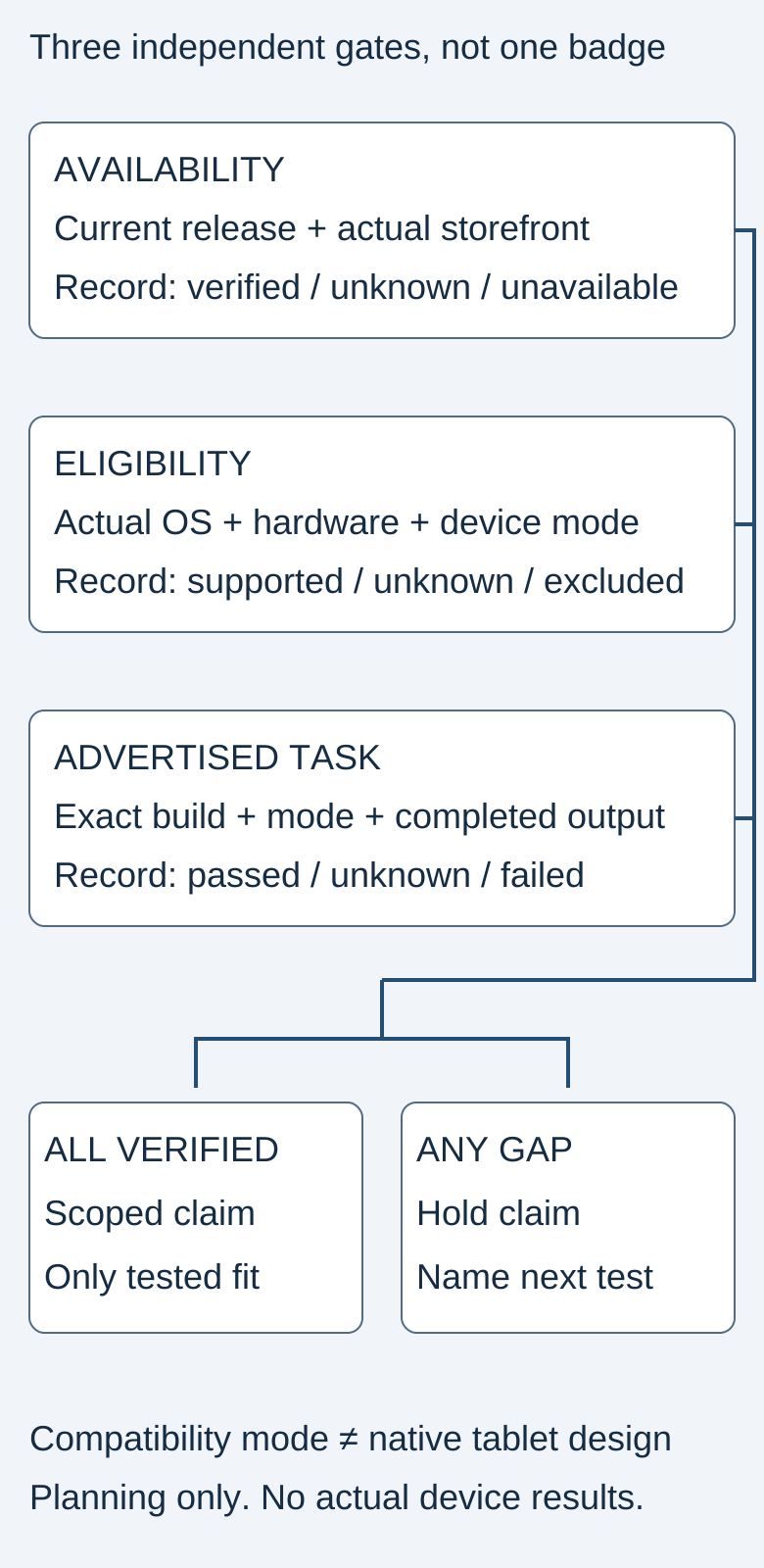
This diagram contains no real device-test results.
Original visual by the Superdirector editorial team. Creation date not recorded.
Gate three: complete the task on the offered mode
Run the actual advertised workflow on an authorized test device with synthetic content. Record device, OS, build, orientation, mode and account state. Check the action that matters: can the person reach the control, supply the input and obtain a usable result? A screen that appears without crashing is not enough.
Simulators are useful for preliminary layout checks, but Apple recommends testing on real compatible devices, including compatibility modes. Keep simulator evidence labeled as such. If the target device is unavailable, leave the task result unknown and assign the missing test rather than claiming universal support.
If the utility targets phone and tablet visitors, inspect the main action and any secondary interface needed to finish it, such as a file picker or permission prompt. A phone-sized view on a larger display is not automatically a failure, but the task must stay usable in the mode you actually offer.
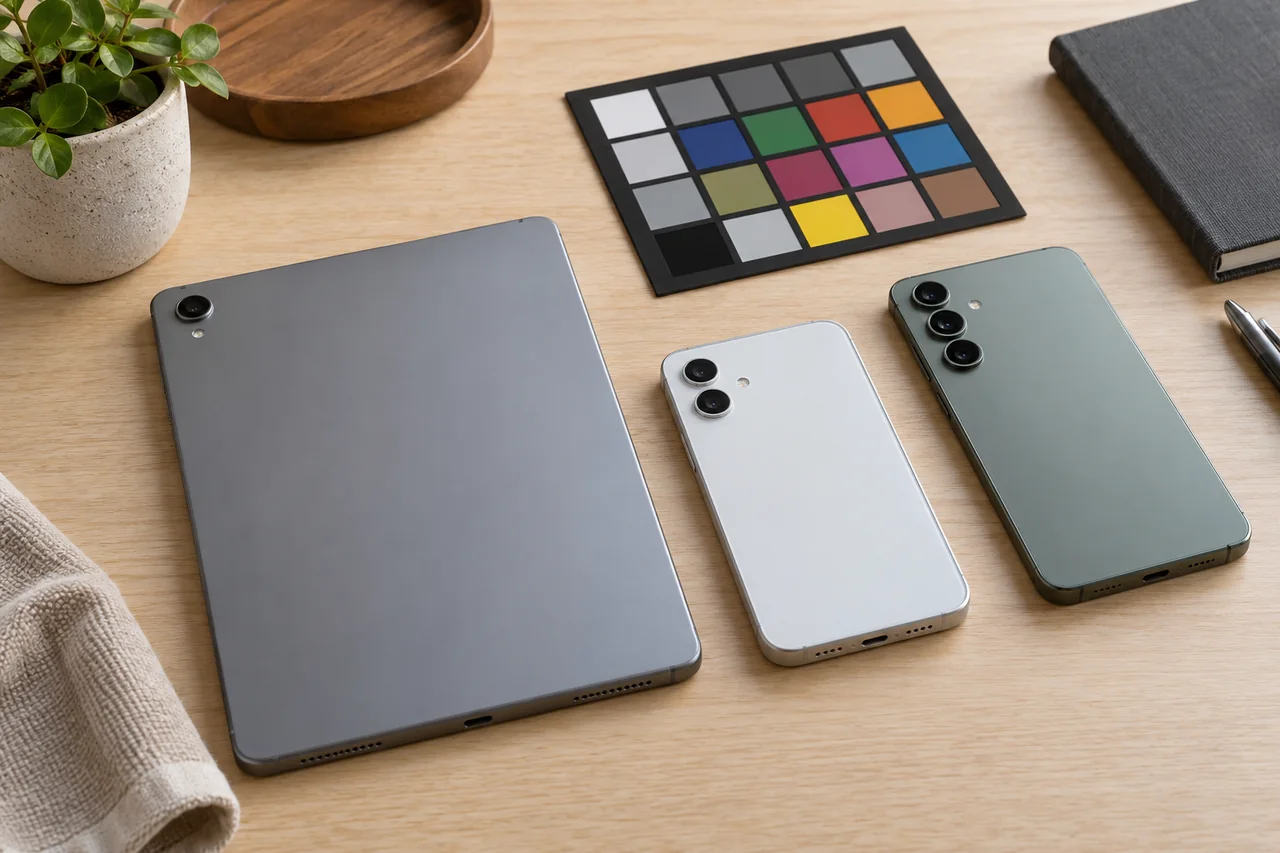
Original AI-generated editorial illustration. Different hardware is a reason to check the promised task on the actual offered device and mode. This is not a product capture, customer scene or completed test.
Original visual by OpenAI image generation directed by the editorial assistant. Created 2026-10-24.
Put the limitation before the install promise
Write the verified findings as a short eligibility note near the call to action. State the supported requirements and the tested scope, and do not invent a device list. If the product is not publicly available in a relevant storefront, say what the current state is instead of sending visitors to a misleading install promise.
Do not make people sign up to find a limitation the product team already knows. Where the experience is untested, do not call it supported. A reasonable stopgap is to narrow the creative to the tested scope until the missing device check is done, provided someone separately authorizes the resulting targeting and copy.
Apple's metadata guidance requires descriptions and visual assets to represent the real experience. That is a reason to match the claim to the evidence. It does not guarantee that any particular wording will pass review.
Keep a small evidence matrix, not a blanket badge
Use the blank device eligibility worksheet. Give each relevant combination three separate results: availability, requirements met, and promised task verified. Attach a source or recording to each result. An unknown in one gate must stay visible and never hide behind a green overall label.
Repeat the affected checks whenever the candidate build, minimum OS, hardware behavior, storefront settings or advertised task changes. Keep earlier observations with their dates, and do not silently overwrite the test history.
After an authorized campaign runs, compare unsupported-device reports and task-completion evidence with the tested combinations. Count install visits, successful installations and completed useful work separately. The checklist may make limitations clearer. It does not establish conversion lift or measured demand.
Evidence and limits
Apple's documentation describes platform behavior. It says nothing about the availability or usability of your particular app. The linked developer report is anecdotal. Verify the listing, requirements and advertised task for each device combination you intend to support.